45 Gmail Keyboard Shortcuts to Work Faster in Your Inbox (2026)
Do you feel like you waste too much time looking at your Gmail inbox? Moving through hundreds and hundreds of emails? Do you wish you had superpowers? In this series of articles, we cover how to actually get them. To get started, we recommend adding a handful of Gmail shortcuts into your workflow.

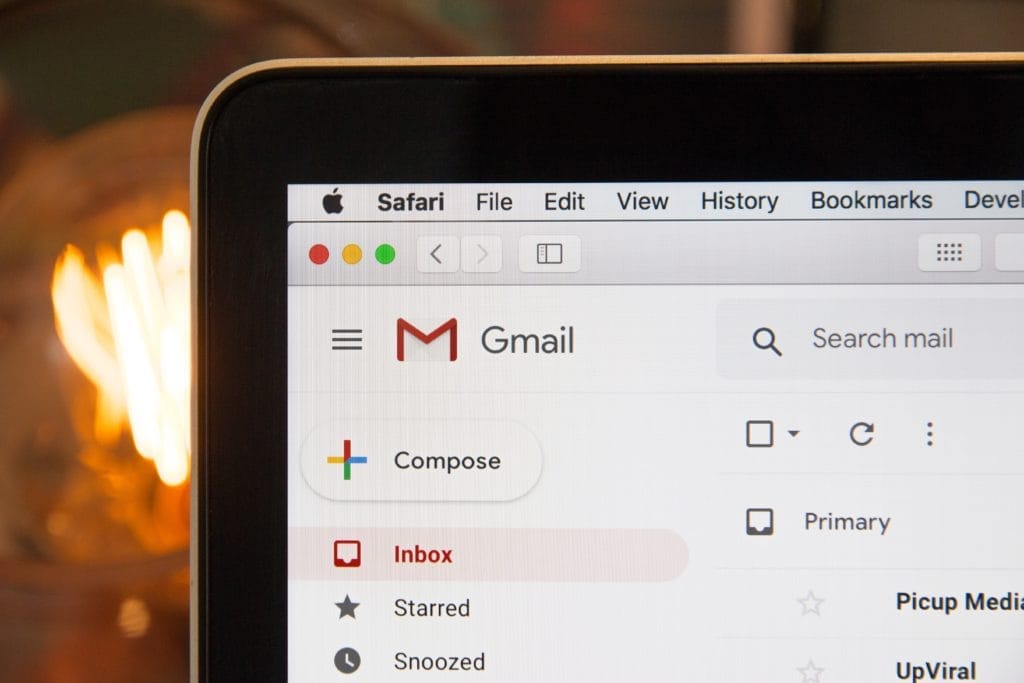
The average professional spends hours a day in their inbox. A big chunk of that time goes to something small and fixable: reaching for the mouse. Gmail keyboard shortcuts (also called hotkeys or shortcut keys) let you compose, reply, archive, and search without your hands leaving the keyboard, and they add up fast.
Shortcuts are one of the quickest email productivity wins you can pick up, and we've put together a complete guide to email productivity if you want the bigger picture. This article is your full Gmail keyboard shortcuts cheat sheet: how to turn them on, the ones worth memorizing first, and the complete list by category.
How to turn on Gmail keyboard shortcuts
Most Gmail shortcuts are switched off by default, so the first step is to enable them:
- Click the gear icon (top right) and choose See all settings.
- Stay on the General tab and scroll down to Keyboard shortcuts.
- Select Keyboard shortcuts on.
- Scroll to the bottom and click Save Changes.
One shortcut works even before you enable the rest: press ? (Shift + /) anywhere in Gmail to pull up the full list in a pop-up, any time.
The Gmail shortcuts worth memorizing first
There are dozens of shortcuts, but you don't need all of them. Start with this handful that covers what you do most, and the rest will come naturally:
| Action | Shortcut |
|---|---|
| Compose a new email | c |
| Reply | r |
| Reply all | a |
| Forward | f |
| Archive | e |
| Delete | # |
| Send | ⌘ / Ctrl + Enter |
| Search mail | / |
| Go to Inbox | g + i |
| Mark as read | Shift + i |
| Star a message | s |
| Undo | z |
The full Gmail keyboard shortcuts list
Here's the complete set, grouped by what you're doing. On a Mac use ⌘, on Windows use Ctrl. For Google's own reference, see the official Gmail keyboard shortcuts documentation.
Compose an email
| Action | Shortcut |
|---|---|
| Send | ⌘ / Ctrl + Enter |
| Add cc recipients | ⌘ / Ctrl + Shift + c |
| Add bcc recipients | ⌘ / Ctrl + Shift + b |
| Insert a link | ⌘ / Ctrl + k |
| Access custom from | ⌘ / Ctrl + Shift + f |
| Open spelling suggestions | ⌘ / Ctrl + m |
| Previous message in a conversation | p |
| Next message in a conversation | n |
Format text
| Action | Shortcut |
|---|---|
| Bold | ⌘ / Ctrl + b |
| Italics | ⌘ / Ctrl + i |
| Underline | ⌘ / Ctrl + u |
| Numbered list | ⌘ / Ctrl + Shift + 7 |
| Bulleted list | ⌘ / Ctrl + Shift + 8 |
| Quote | ⌘ / Ctrl + Shift + 9 |
| Indent more | ⌘ / Ctrl + ] |
| Indent less | ⌘ / Ctrl + [ |
| Align left | ⌘ / Ctrl + Shift + l |
| Align center | ⌘ / Ctrl + Shift + e |
| Align right | ⌘ / Ctrl + Shift + r |
| Remove formatting | ⌘ / Ctrl + \ |
Act on emails
| Action | Shortcut |
|---|---|
| Reply | r |
| Reply all | a |
| Forward | f |
| Reply in a new window | Shift + r |
| Archive | e |
| Delete | # |
| Report as spam | ! |
| Mute conversation | m |
| Mark as read | Shift + i |
| Mark as unread | Shift + u |
| Mark as important | + or = |
| Mark as not important | - |
| Star / rotate among superstars | s |
| Snooze | b |
| Select conversation | x |
| Undo last action | z |
| Expand entire conversation | ; |
| Collapse entire conversation | : |
| Add conversation to Tasks | Shift + t |
Jump around Gmail
| Action | Shortcut |
|---|---|
| Go to Inbox | g + i |
| Go to Starred | g + s |
| Go to Sent | g + t |
| Go to Drafts | g + d |
| Go to All mail | g + a |
| Go to Tasks | g + k |
| Go to label | g + l |
Select conversations
| Action | Shortcut |
|---|---|
| Select all conversations | * + a |
| Deselect all | * + n |
| Select read | * + r |
| Select unread | * + u |
| Select starred | * + s |
| Select unstarred | * + t |
Navigate your inbox
| Action | Shortcut |
|---|---|
| Newer conversation | k |
| Older conversation | j |
| Open conversation | o or Enter |
| Back to threadlist | u |
| Go to next page | g + n |
| Go to previous page | g + p |
| Next Inbox section | ` |
| Previous Inbox section | ~ |
App-wide shortcuts
| Action | Shortcut |
|---|---|
| Compose | c |
| Compose in a new tab | d |
| Search mail | / |
| Open "more actions" menu | . |
| Open "move to" menu | v |
| Open "label as" menu | l |
How to customize your Gmail shortcuts
If a default key combination doesn't suit you, Gmail lets you remap it:
- Go to Settings, then See all settings, then the Advanced tab.
- Enable Custom keyboard shortcuts and save.
- A new Keyboard Shortcuts tab appears in Settings, where you can set your own keys.
Gmail shortcuts not working? Here's how to fix it
If your shortcut keys aren't responding, one of these is almost always the cause:
- They're still turned off. This is by far the most common reason. Go to Settings, then General, and set Keyboard shortcuts to on.
- Your cursor is in a text field. Inside a search box or an open compose window, Gmail treats your keys as typing. Click out of the field first.
- A browser extension is intercepting the key. Some extensions grab the same keystrokes. Try an incognito window or disable extensions to check.
- You're using a custom key that isn't enabled. Custom keys only work once you switch on Custom keyboard shortcuts in the Advanced tab.
- You're in the wrong view. A few shortcuts behave differently depending on whether conversation view is on or off.
Do Gmail keyboard shortcuts work on mobile?
Not in the Gmail app for iPhone or Android. Keyboard shortcuts are a desktop feature. The one exception is a tablet or phone paired with a physical keyboard, where some shortcuts do work.
From faster keystrokes to a faster team
Shortcuts shave seconds off every action, and those seconds compound across a busy inbox. Pair them with Gmail filters and email scheduling to keep the inbox sorted, and you're well on your way to inbox zero.
The next question is whether all that speed is actually paying off for your team. Once your inbox habits are dialed in, measuring the time your team spends on email and your Gmail analytics shows you what's working. Email Meter reports on response times, email volume, and workload per person automatically, so faster keystrokes turn into faster replies you can actually see.
Request a demo to see how your team's email performance measures up.
Frequently asked questions
How do I turn on keyboard shortcuts in Gmail?
Go to Settings, then See all settings, and on the General tab set Keyboard shortcuts to on, then Save Changes. Most shortcuts stay off until you do this.
How do I see all Gmail keyboard shortcuts?
Press ? (Shift + /) anywhere in Gmail to open the full list in a pop-up overlay.
Can I create my own Gmail shortcuts?
Yes. Enable Custom keyboard shortcuts in the Advanced settings tab, then remap keys from the new Keyboard Shortcuts tab.
Do Gmail keyboard shortcuts work on mobile?
No, not in the mobile app. They're a desktop feature, though a tablet or phone with a physical keyboard can use some of them.
Why aren't my Gmail keyboard shortcuts working?
The most common reason is that shortcuts are still turned off in Settings, under General. Also check that your cursor isn't sitting in a text field or compose window, and that no browser extension is intercepting the key.
What is the keyboard shortcut to compose a new email in Gmail?
Press c to open a new message, or d to compose in a new tab.
What is the shortcut to reply in Gmail?
Press r to reply, or a to reply to all. Add Shift (Shift + r or Shift + a) to reply in a new window.
What is the shortcut to archive an email in Gmail?
Press e to archive the open or selected email.
What is the shortcut to send an email in Gmail?
Press ⌘ + Enter on a Mac or Ctrl + Enter on Windows to send.