Google Group Mailbox: How to Set Up a Shared Team Mailbox with Google Groups (2026)
What is a Google Group mailbox? How to set up a shared team mailbox with Google Groups, its limits versus a true shared mailbox, and how to track response times.
If your team shares an address like support@ or info@, a Google Group is the quickest way to turn it into a mailbox everyone can manage together, without buying a new tool or a separate license. This guide explains what a Google Group mailbox is, how to set one up step by step, where it falls short, and how to measure how well your team handles it.
Quick Answer
What is a Google Group mailbox?
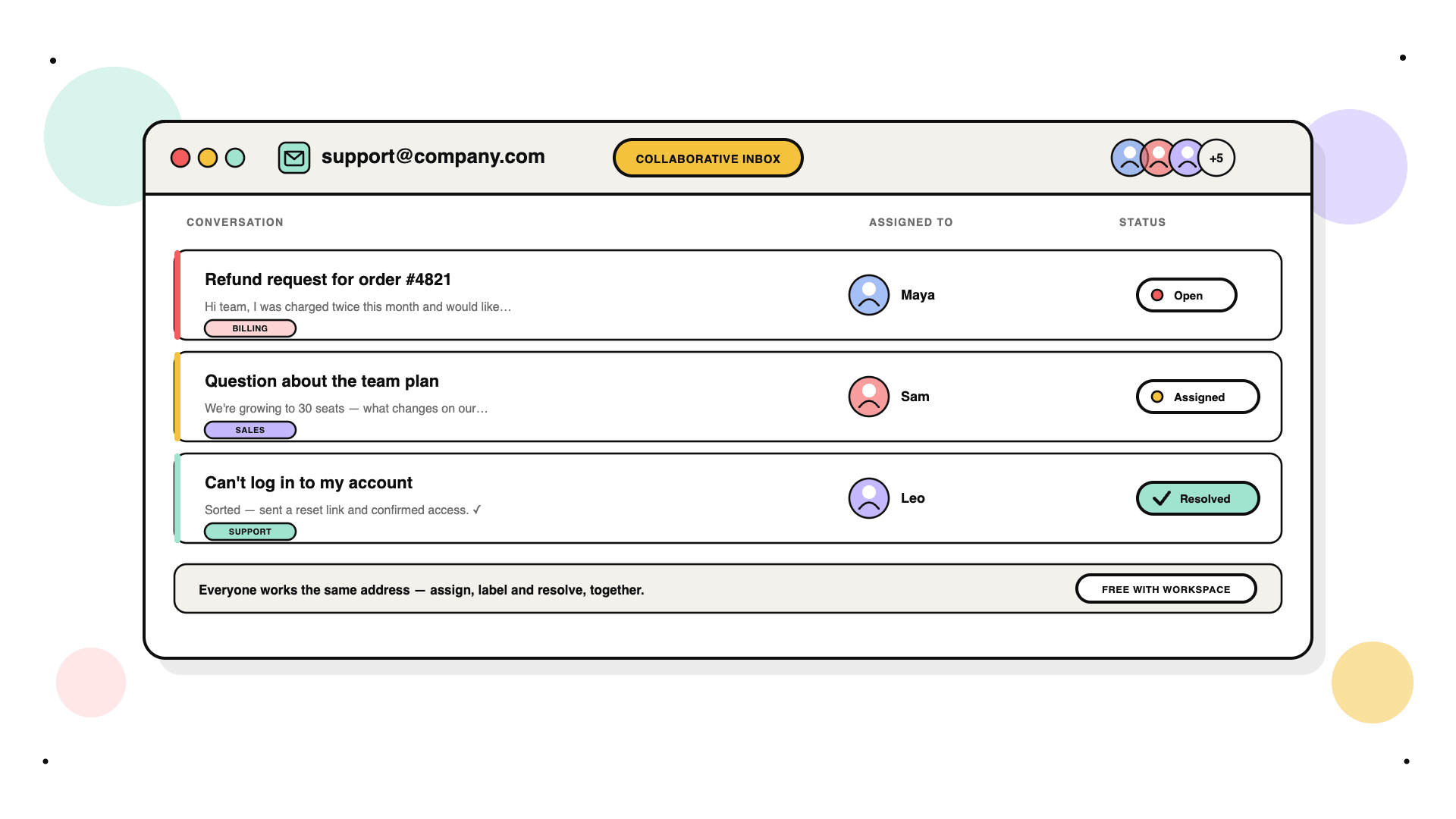
A Google Group mailbox is a shared email address (like support@yourcompany.com) built on a Google Group, so multiple team members can receive and reply to the same messages instead of forwarding them around. Turn on the Collaborative Inbox feature and your team can assign conversations, mark them resolved and add labels. It is free with Google Workspace and takes a few minutes to set up, but it has no shared Sent folder, no collision detection and no built-in analytics, which is where a tool like Email Meter comes in. Track your group mailbox response times free →
What is a Google Group mailbox?
A Google Group mailbox is simply a Google Group used as a team email address. Instead of an inbox that belongs to one person, the group receives email at a shared address and every member can read and respond to it. It is the closest thing Google Workspace offers to a native shared mailbox, and it costs nothing extra because Google Groups is included in every Workspace plan.
On its own, a Google Group works like a distribution list: messages are delivered to members. Once you enable the Collaborative Inbox option, it becomes a real team mailbox where members can take ownership of conversations, assign them to colleagues, track status (open, assigned, resolved) and apply labels. For a deeper look at that feature specifically, see our guide to the Google Groups Collaborative Inbox.
How to set up a Google Group mailbox
Setting up a Google Group mailbox takes about five minutes and requires admin or group-creation rights in your Google Workspace.
- Create the group. Go to groups.google.com and click Create group. Give it a name and the shared email address you want, for example support@yourcompany.com.
- Set the group type to Collaborative Inbox. Under the group settings, choose the Collaborative Inbox option so members can assign and track conversations, not just receive them.
- Enable conversation history. In Group settings > General, turn on Conversation history. This is the most common step teams forget, and without it the collaborative features do not work.
- Set permissions. Decide who can post, who can assign conversations, who can mark them complete and who can moderate. Managers usually get assignment rights, all members get posting rights.
- Add your team. Invite the people who will work the mailbox as members, and make sure external email is allowed if you receive messages from customers outside your domain.
That is it. Your team can now manage a shared address together from the Google Groups interface.
Google Group mailbox vs a true shared mailbox
A Google Group mailbox covers the basics, but it is not identical to a full shared mailbox. The main differences:
- No shared Sent folder. Replies are sent from each member's own account, so the team cannot see all outgoing messages in one place unless you configure send-as for everyone.
- Separate interface. You manage the mailbox in the Google Groups view rather than directly in Gmail.
- No collision detection. Two people can reply to the same email at once, since there is no alert when a colleague is already typing.
If you want to compare every option (Collaborative Inbox, Gmail delegation and third-party tools), our Google Workspace shared mailbox guide breaks them all down.
Limitations of a Google Group mailbox
The biggest gap is visibility. A Google Group mailbox helps your team receive and assign email, but it tells you nothing about how well you are handling it. There is no dashboard for response times, no SLA monitoring, no alert when a message goes unanswered, and no view of who is carrying the most workload. Google built it for email management, not performance analytics. Specifically, it lacks:
- Response time tracking, so you cannot see how fast your team replies.
- SLA compliance monitoring, so there is no way to set targets and measure against them.
- Unreplied email alerts, so a missed message is only noticed when the customer follows up.
- Workload distribution, so you cannot tell <a href="https://www.emailmeter.com/blog/webinar/who-is-handling-what-shared-inbox/">who is handling the most volume</a>.
- Automated reports, so managers have no data without checking manually.
How to track your Google Group mailbox performance
To add the analytics layer that Google Groups lacks, you connect a tool like Email Meter. It plugs into your Google Workspace in a few minutes, with no browser extension and no change to how your team works in the group, and reports on response times, volumes, SLA compliance and workload across the shared address. Your team keeps using the Google Group mailbox exactly as before, and you get the numbers to manage and prove your responsiveness.
Proven Results
Teams use Email Meter to cut response times and prove their service levels on shared addresses. Reported results include Payday HCM reducing response time by 71 percent (from 5 hours to 2 hours), Entirety by 48 percent, Fujifilm by 30 percent, and Outreach by 30.5 percent, among others. See the full set of customer results in our Gmail analytics and stats guide.
Frequently asked questions
What is a Google Group mailbox?
A Google Group mailbox is a shared email address built on a Google Group, so a team can receive and reply to the same messages together. With the Collaborative Inbox feature enabled, members can assign conversations, track status and add labels. It is included free with Google Workspace.
How do I create a Google Group mailbox?
Go to groups.google.com, create a group with your team address, set the group type to Collaborative Inbox, then enable Conversation history in Group settings and configure permissions for who can post, assign and resolve conversations.
Is a Google Group mailbox the same as a shared mailbox?
It is the closest native equivalent, but not identical. A Google Group mailbox has no shared Sent folder, is managed from the Google Groups interface rather than Gmail, and has no collision detection. For most teams it is a free, capable starting point.
What are the limitations of a Google Group mailbox?
The main limitations are no shared Sent folder, no collision detection, and no built-in analytics, so there is no response time, SLA or workload reporting. Teams often add a tool like Email Meter to cover the analytics gap.
Is a Google Group mailbox free?
Yes. Google Groups, including the Collaborative Inbox feature, is included in every Google Workspace plan at no additional cost.
Can a Google Group mailbox receive external emails?
Yes, as long as the group is configured to allow posting from outside your organization. Check the posting permissions in the group settings if customer emails are not arriving.
Can you track response times in a Google Group mailbox?
Not natively. Google Groups handles assignment and status but has no response time, SLA or workload reporting. To track response times and SLA compliance, you connect an analytics tool like Email Meter to your Google Workspace.
See your group mailbox numbers
See how fast your team handles your Google Group mailbox. Connect Email Meter to your Google Workspace in under 5 minutes and start from your existing email history, with no extension and no change to how your team works.
See your Google Group mailbox numbers
Connect Email Meter to your Google Workspace and start from your existing email history. No browser extension, no change to how your team works in the group.
Request a demo →