


Last updated: March 2026
Adding a shared mailbox to Outlook takes less than two minutes, once your admin has set it up. The tricky part is that the steps differ depending on which version of Outlook you're using: New Outlook for Windows, Classic Outlook, Outlook on the web, Mac, or mobile.
This guide covers all five versions, plus the most common troubleshooting issues teams run into.
What is a shared mailbox in Outlook?
A shared mailbox is a Microsoft 365 mailbox that multiple team members can access from a single email address, like support@yourcompany.com or info@yourcompany.com. Unlike a regular mailbox, it has no password of its own. Team members access it through their own Outlook accounts using permissions granted by an admin.
Key features of Outlook shared mailboxes:
- Send As — emails appear to come from the shared address, not the individual
- Shared calendar — all members can view and manage a common calendar
- No license required — shared mailboxes up to 50 GB don't need a separate Microsoft 365 license
- Shared contacts — a common address book accessible to all members
Shared mailboxes are commonly used by customer support teams, sales teams, and any department that manages a public-facing inbox together.
Before you start: what your admin needs to do
You cannot add a shared mailbox to Outlook until your Microsoft 365 admin has:
- Created the shared mailbox in the Microsoft 365 Admin Center or Exchange Admin Center
- Added you as a member with the appropriate permissions, at minimum, Full Access
Once your admin adds you, it can take up to 60 minutes for permissions to propagate. In most environments, the shared mailbox will then appear automatically in your Outlook folder pane after you close and reopen Outlook (this is called automapping).
If it doesn't appear automatically after restarting Outlook, follow the manual steps below for your version.
New Outlook for Windows
Microsoft rolled out New Outlook as the default client in late 2024. The interface is significantly different from Classic Outlook, shared mailboxes are now added via Settings rather than Account Settings.
If automapping is enabled (most common):Close and reopen Outlook. The shared mailbox should appear automatically in the left folder pane under your primary mailbox.
To add manually:
- Open New Outlook and click the Settings gear icon (top right)
- Go to Accounts → Shared with me
- Make sure your primary account is selected in the dropdown (this matters if you have multiple accounts)
- Click + Add
- Type the shared mailbox email address and click Search directory
- Select the mailbox from the results and click Continue
- Outlook will verify your permissions and prompt you to restart
- After restarting, the shared mailbox appears in the left navigation pane
Note: New Outlook requires that your primary account (the one with Full Access permissions) is already added to Outlook before you can add the shared mailbox.
Classic Outlook for Windows
If you're still using Classic Outlook (the traditional desktop application), the process goes through Account Settings.
If automapping is enabled:Close and reopen Outlook. The shared mailbox should appear automatically below your primary mailbox in the folder pane.
To add manually:
- Open Classic Outlook and click File in the top-left corner
- Select Account Settings → Account Settings
- On the Email tab, select your primary account and click Change
- Click More Settings
- Go to the Advanced tab
- Under "Open these additional mailboxes", click Add
- Type the name or email address of the shared mailbox and click OK
- Click OK, then Next, then Finish, then Close
- The shared mailbox will appear in your folder pane after Outlook refreshes
Outlook on the web (OWA)
Outlook on the web (mail.office365.com or outlook.office.com) lets you add a shared mailbox directly without going through desktop settings.
Method 1 — Open directly:
- Sign in to Outlook on the web
- Right-click your name in the left folder pane
- Select Add shared folder or mailbox
- Type the shared mailbox name or email address
- Click Add
- The shared mailbox appears in your folder pane
Method 2 — Open in a separate tab:
- In the browser address bar, go to:
https://outlook.office.com/mail/shared/[shared-mailbox-email] - The shared mailbox opens in a new browser tab
- You can bookmark this URL for quick access
Outlook for Mac
- Open Outlook for Mac
- In the top menu bar, click Tools → Accounts
- Select your primary Exchange/Microsoft 365 account
- Click Advanced (bottom of the account window)
- Go to the Delegates tab
- Under "Open these additional mailboxes", click +
- Type the shared mailbox email address and click Add
- Close the Accounts window
- The shared mailbox will appear in the left folder pane
Outlook mobile (iOS & Android)
- Open Outlook on your iOS or Android device
- Tap the hamburger menu (☰) in the top left
- Tap Add account at the bottom of the navigation pane
- Select Add a Shared Mailbox
- If you have multiple accounts, select the one that has Full Access to the shared mailbox
- The shared mailbox will appear in your account list
Requirements for mobile: Your mailbox and the shared mailbox must both be in Exchange Online (Microsoft 365). On-premises Exchange shared mailboxes are not supported on Outlook mobile.
How to send email from a shared mailbox
Once the shared mailbox is added, you need to make sure the From field is visible when composing.
In New Outlook and OWA:
- Click New mail
- Click From at the top of the compose window
- Select the shared mailbox address from the dropdown
In Classic Outlook:
- Click New Email
- If the From field is not visible, click Options → Show From
- Click From and select Other email address
- Type the shared mailbox address
On Mac:
- Click New Email
- Click the From dropdown and select the shared mailbox
Replies to emails sent from the shared mailbox will arrive in the shared mailbox inbox, not your personal inbox
Troubleshooting: shared mailbox not showing up
Shared mailbox doesn't appear after restart
Wait up to 60 minutes after your admin adds you — permissions take time to propagate. Then close and fully reopen Outlook (don't just minimize). If still not appearing, follow the manual steps for your version above.
Permissions error when adding manually
This usually means your admin hasn't granted Full Access yet, or the permission change hasn't propagated. Ask your admin to confirm your permissions in the Exchange Admin Center under Recipients → Mailboxes → Delegation.
Shared mailbox appears in OWA but not in desktop Outlook
Automapping may be disabled for your account. Add the mailbox manually using the Classic Outlook steps above, or ask your admin to check the automapping setting.
Sent items go to your personal Sent folder instead of the shared mailbox
This is a common configuration issue. Your admin needs to run this PowerShell command:Set-Mailbox [shared-mailbox] -MessageCopyForSentAsEnabled $true
New Outlook shows the mailbox but can't access it
This is a known issue when the shared mailbox was added before New Outlook fully supported shared mailboxes. Remove it from Settings → Accounts → Shared with me, restart Outlook, then re-add it.
Add-ins conflicting with shared mailbox access
Go to File → Options → Add-ins → Manage COM Add-ins and disable third-party add-ins one by one to identify the conflict.
Managing shared mailbox performance with EmailMeter
Adding a shared mailbox to Outlook is the first step. But once your team is working from it, the next challenge is visibility: who's handling what, how fast is the team responding, and are you hitting your SLA targets?
Outlook doesn't provide this natively. The Microsoft 365 admin center shows basic usage reports, but there's no response time tracking, no SLA monitoring, and no per-member breakdown of who's handling the most volume.
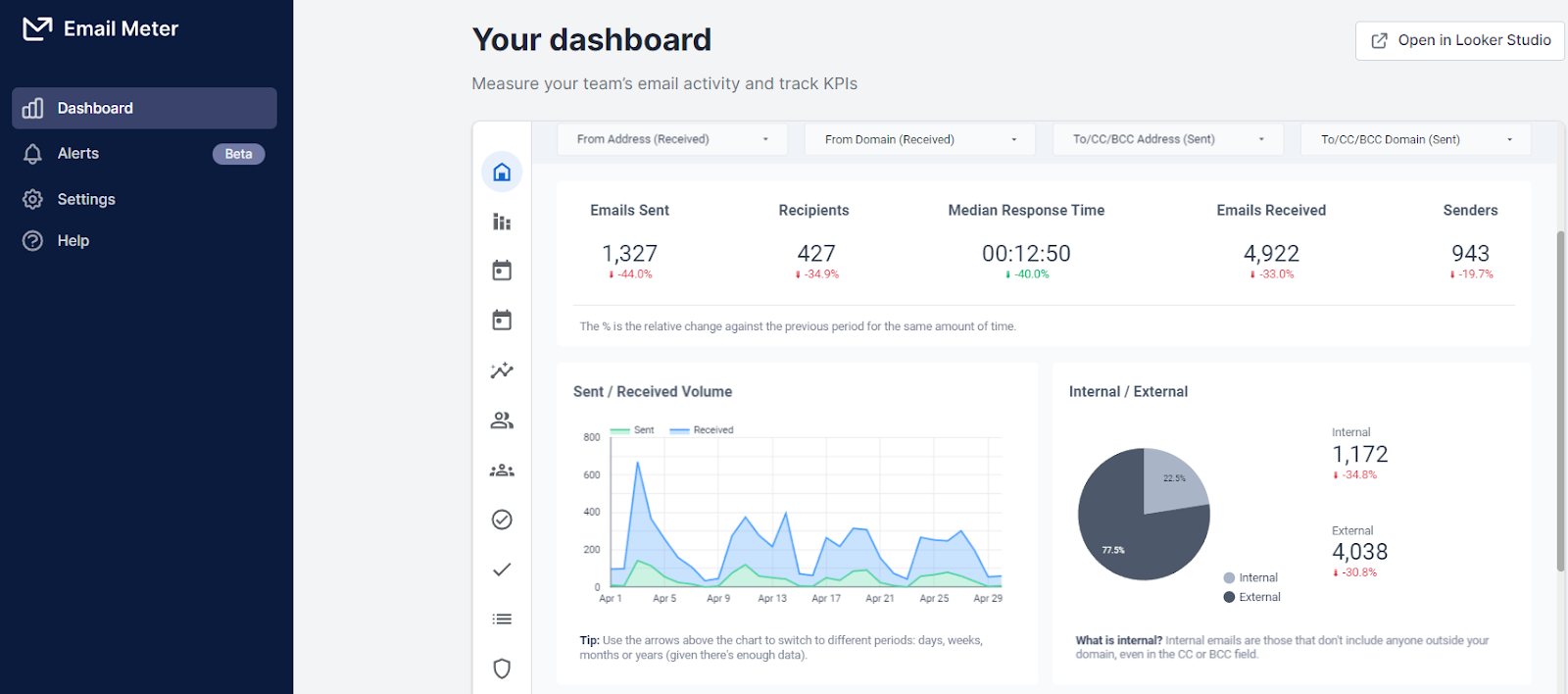
EmailMeter connects to your Microsoft 365 shared mailbox and gives you:
- Response time tracking — median, average, and distribution of how long replies take
- SLA compliance — what percentage of emails are answered within your target timeframe
- Workload distribution — who on the team is handling the most volume
- Unreplied email tracking — which threads have gone unanswered and for how long
- Weekly automated reports — sent to managers every Monday morning
Setup takes under 5 minutes and requires no IT intervention beyond the standard admin permissions.
Start tracking your shared mailbox
FAQ
Do I need admin rights to add a shared mailbox to Outlook?No — you only need your admin to grant you Full Access permissions to the shared mailbox. Once they do, you can add it yourself using the steps above.
Can I add a shared mailbox without a Microsoft 365 license?Shared mailboxes don't need their own license (up to 50 GB). However, each person accessing the shared mailbox must have their own Microsoft 365 license.
How many shared mailboxes can I add to Outlook?There's no hard limit on the number of shared mailboxes you can add to Outlook. However, having many can slow down Outlook's load time. Most teams use 1–3 shared mailboxes per user.
Why is my shared mailbox not showing in New Outlook?New Outlook changed how shared mailboxes are added — they now appear under Settings → Accounts → Shared with me. If the mailbox doesn't appear after following those steps, check that your admin has granted Full Access and that at least 60 minutes have passed since the permission was added.
Can I access a shared mailbox on Outlook mobile?Yes — both iOS and Android support shared mailboxes via Add Account → Add a Shared Mailbox. The mailbox must be hosted in Exchange Online (Microsoft 365), not on-premises Exchange.
What's the difference between a shared mailbox and a distribution list in Outlook?A shared mailbox lets your team send and receive emails from a single address, with all members seeing the same inbox. A distribution list only forwards incoming emails to each member's personal inbox, members cannot reply from the shared address or see each other's responses.





