Most guides on how to follow up email after no response focus on the individual, what to write, when to send it, how to phrase a polite nudge. That advice is useful if you manage your own inbox. It is useless if you manage a team of ten people handling hundreds of customer emails every day.
At that scale, the problem is not how to write a follow-up. It is how to know which emails across your team have had no response, and for how long, before a customer loses patience and complains.
This guide is for managers of customer-facing teams who want to stop relying on individual memory and build a system that ensures every email gets answered.
Why your team's follow-up problem is not what you think
When a customer email goes unanswered, the instinct is to blame the individual. They forgot. They were busy. They deprioritised it.
But in most cases, the root cause is not individual negligence. It is a structural visibility problem. No one on the team, including the manager, has a clear view of which emails are waiting for a response, how long they have been waiting, and who is responsible.
Without that visibility, follow-up becomes a reactive behaviour. Someone chases an email because a customer complained, not because a system flagged it. By then, the damage is already done.
Research consistently shows that response time is one of the top drivers of customer satisfaction. According to a 2023 HubSpot report, 90% of customers rate an immediate response as important or very important when they have a service question. Yet most teams have no systematic way of identifying which emails have not been responded to until a customer follows up themselves.
The solution is not a better follow-up template. It is visibility into your team's unreplied email backlog before problems surface.
What an unreplied email backlog actually looks like?
How many emails go unanswered in a typical customer-facing team?
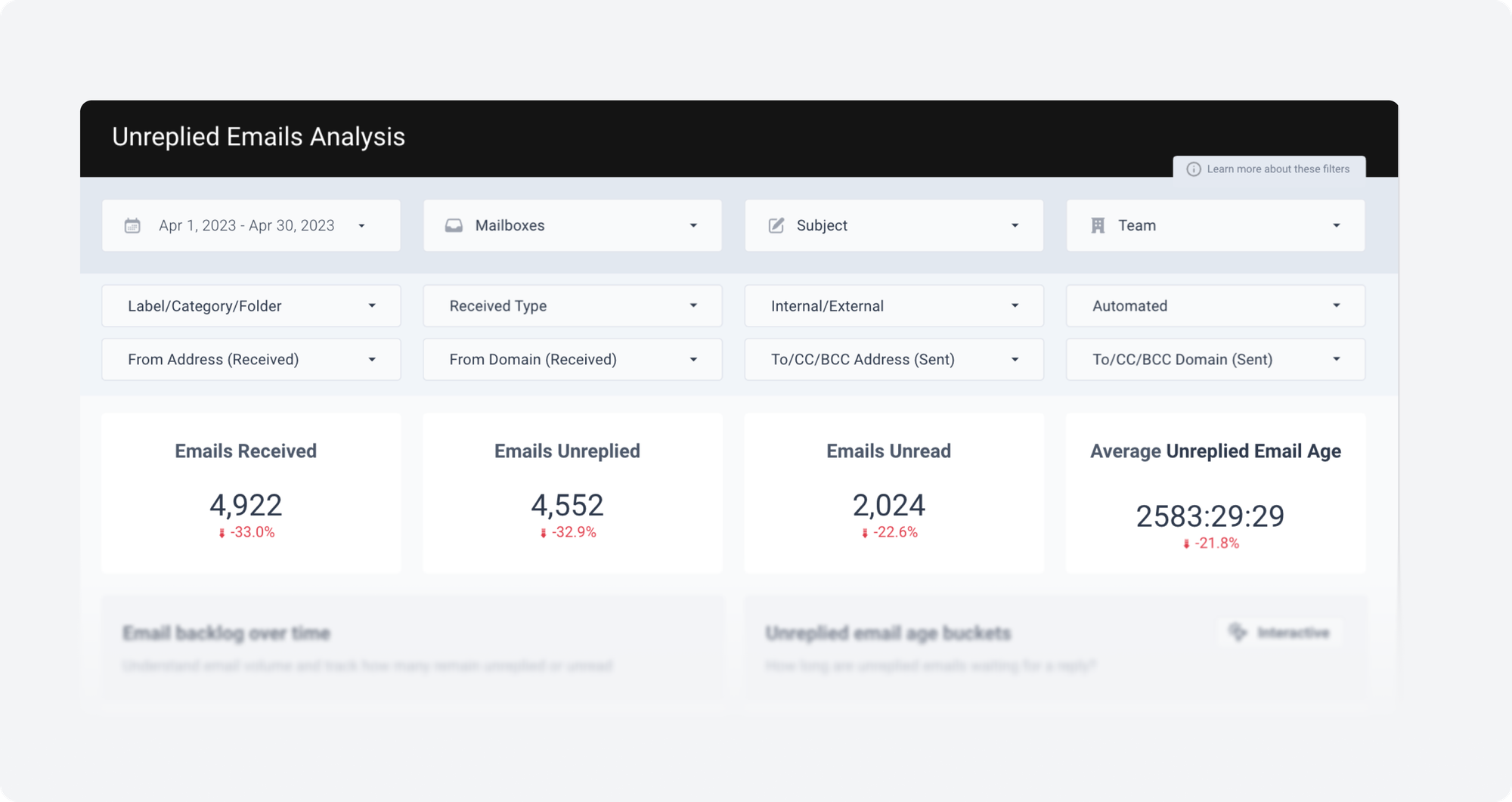
To understand the scale of the problem, consider a typical customer-facing team of 11 people. In a single month, they receive 4,922 emails. Of those, 4,552 are unreplied, a 92% unreplied rate. The average unreplied email has been waiting for over 2,500 hours.
Why is the unreplied backlog never evenly distributed across your team?
That is not an exceptional situation. It is what happens when a team has no systematic way of tracking which emails need a follow-up. Emails pile up not because people are lazy but because there is no shared view of what is waiting.
The second problem is distribution. When you look at the data by team member, the unreplied backlog is never evenly distributed.
In this example, Kelly Kapoor replies to 40% of emails she receives. Michael Scott replies to 3.56%. That is not a personality difference, it is a workload and visibility difference. Without this data, a manager has no way of knowing where the backlog is concentrated or who needs support.
How to track unreplied emails across your team: a step-by-step guide
Email Meter connects to Gmail and Microsoft 365 and gives managers a complete view of their team's unreplied email backlog, without reading individual email content. Here is what that visibility looks like in practice.
A snapshot of your team's unreplied backlog
The first thing Email Meter surfaces is a top-level view of four numbers: emails received, emails unreplied, emails unread, and average unreplied email age. These four numbers tell you whether your team has a follow-up problem before you look at anything else. If your average unreplied email age is over 24 hours, you have a systemic issue, not an individual one.
Where the backlog is concentrated
Email Meter breaks down the unreplied backlog by team member and shared mailbox, showing how many emails each person received, how many are unreplied, their response rate, their average unreplied email age, and the age of their oldest unreplied email. This is not a performance review tool. It is a workload management tool. High unreplied counts almost always mean someone is overwhelmed, not underperforming.
How long emails have been waiting
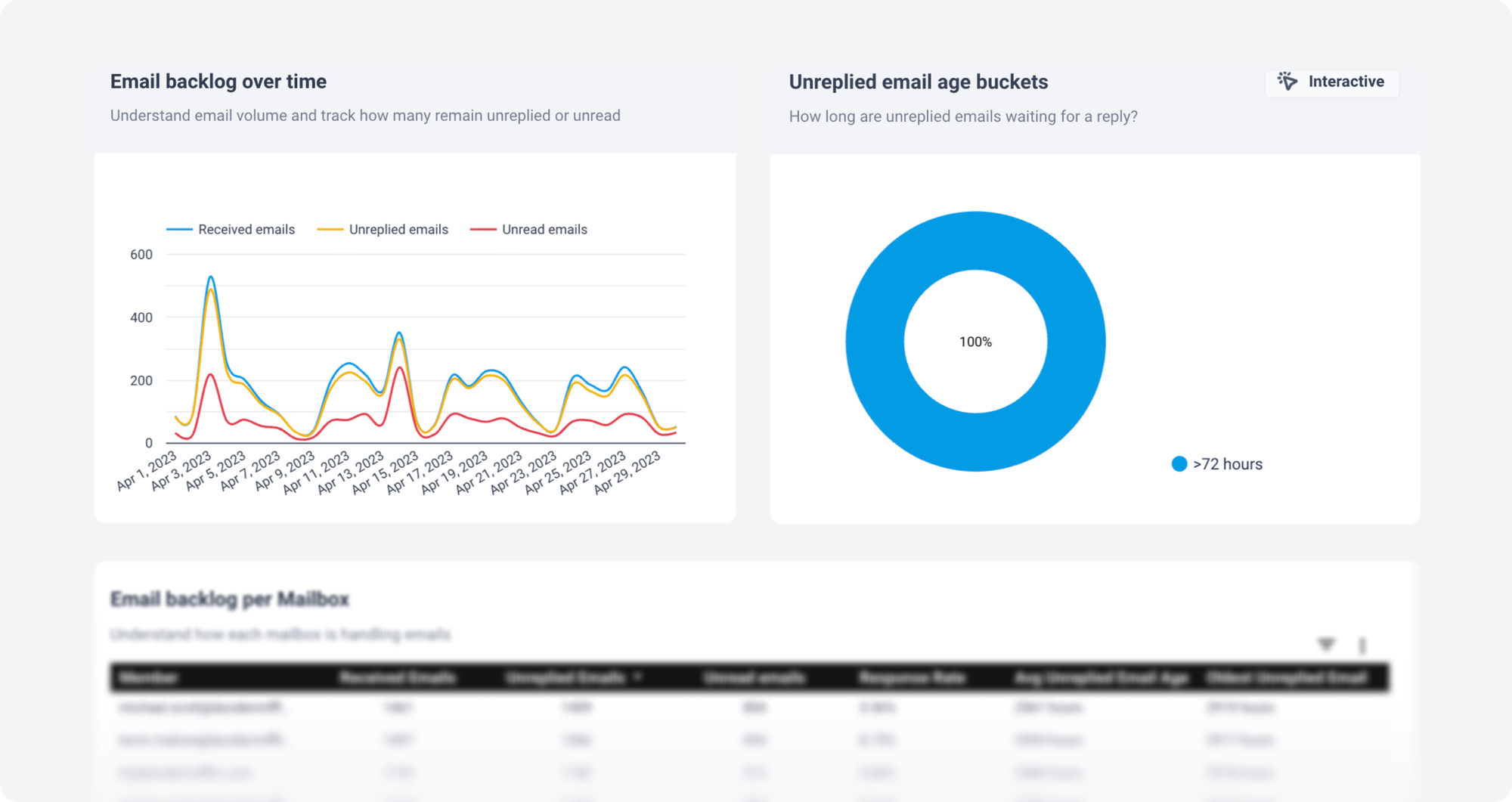
A second view segments the unreplied backlog into time bands, under 24 hours, 24 to 72 hours, and over 72 hours. In a well-managed team, the vast majority of unreplied emails should be under 24 hours old. When 100% of the backlog sits in the over 72 hours band, as in the example above, that is a critical signal that the team has lost control of its inbox.
The specific emails at risk
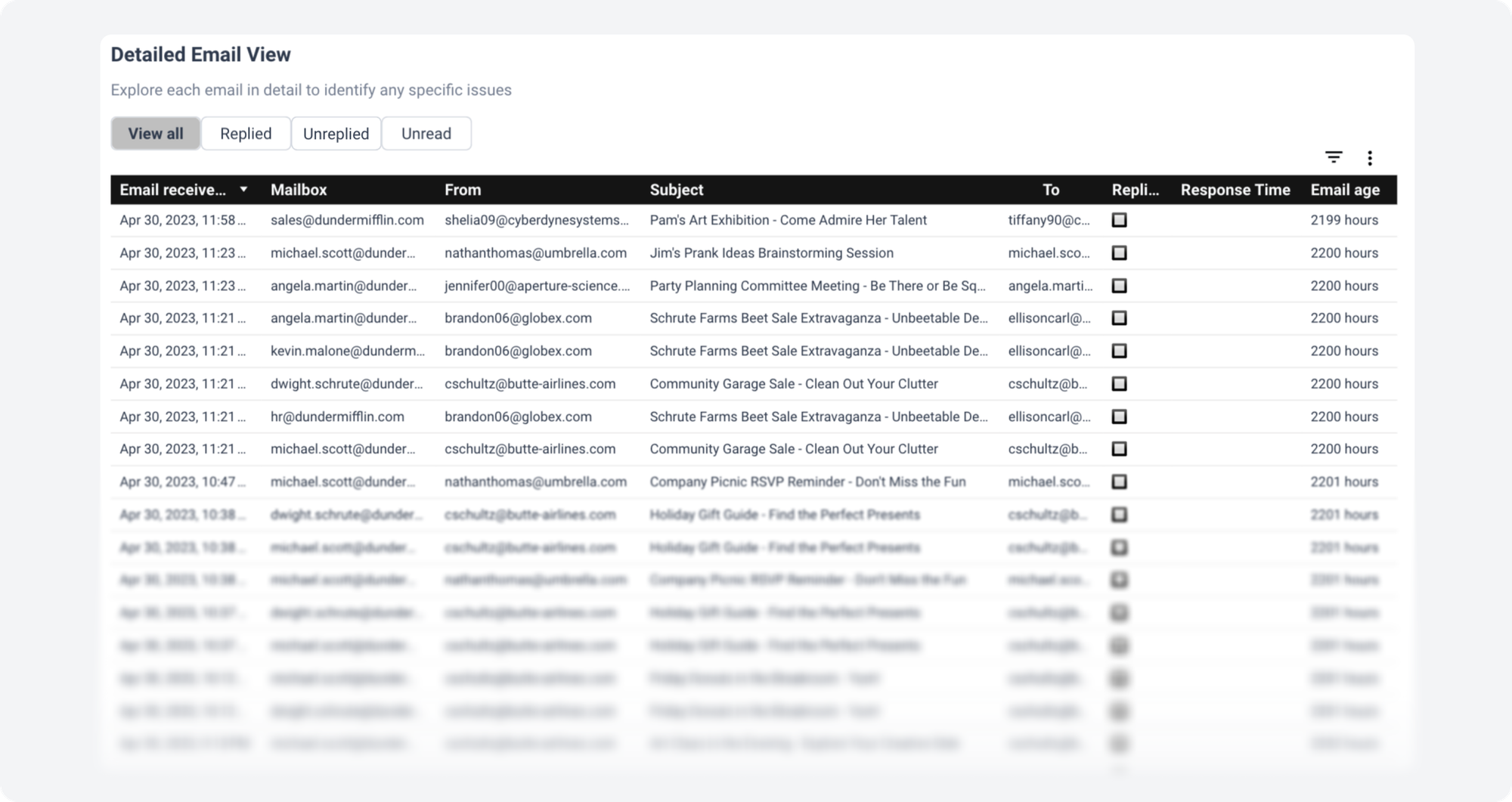
When a particular mailbox or team member shows a high unreplied count, Email Meter lets you drill down to see exactly which emails are waiting — sorted by age, with sender, subject, and mailbox visible. This gives you the oldest and most at-risk threads first, before a customer escalates.
Whether the backlog is growing or shrinking
Finally, Email Meter tracks unreplied volume day by day so you can see trends over time. A backlog that consistently grows on Mondays, or that never fully clears after a team member is absent, is a structural problem, not a one-off. This view is the one to bring to your weekly team meeting.
All of these views are available in Email Meter Custom. Book a demo to see them live with your own data
What to do once you have visibility?
Tracking unreplied emails is the first step. The second is using that data to prevent the backlog from growing in the first place.
Set response time targets by email type
Not every email needs the same follow-up timeline. A new customer inquiry requires a faster response than an internal update. Define response time targets by category, external customer emails within 4 hours, internal emails within 24 hours. This is the foundation of SLA management. With Email Meter Custom, you can track compliance against those targets automatically across every mailbox.
Redistribute workload before it becomes a crisis
When one team member consistently has more unreplied emails than others, that is almost always a workload distribution issue. The per-mailbox data makes this visible before a customer escalates, giving you time to redistribute incoming volume and prevent burnout. For practical tips on how to reduce email response times across your team, see our dedicated guide.
Set up alerts for emails over a defined age threshold
Rather than discovering a 2,000-hour-old email during a client complaint call, Email Meter Custom lets you set alerts when unreplied emails exceed a defined age threshold, for example, 48 hours. This turns follow-up from a reactive behaviour into a proactive one.
Book a demo to see how alerts work with your own data
Make unreplied email age a team metric
The most effective change most teams can make is the simplest: add average unreplied email age to your weekly team review. Five minutes of data review prevents hours of customer complaint handling. When the team sees the data together, follow-up accountability becomes shared, not something a manager has to enforce individually.
Industry benchmarks: what good looks like
To put your team's data in context, here are the email response time benchmarks most commonly cited by customer experience research:
According to SuperOffice's 2023 Customer Service Benchmark Report, the average response time to a customer email is 12 hours, but the standard customers expect is under 1 hour. 62% of companies do not respond to customer emails at all.
For customer support teams specifically, a response rate above 95% within 4 hours is considered best-in-class. A response rate below 80% within 24 hours is a signal of systemic backlog issues.
For sales teams, Harvard Business Review research found that companies that respond to leads within an hour are seven times more likely to have a meaningful conversation than those who wait even 60 minutes longer.
Use these benchmarks alongside your Email Meter data to set realistic targets for your team and to build the case internally for investing in better email visibility. For a full breakdown of how to measure email response times by team and channel, see our dedicated guide.
FAQ
What counts as an unreplied email?
An unreplied email is any inbound email that has not received a response from the recipient. Email Meter tracks this automatically from Gmail and Microsoft 365 data, no manual tagging required. It distinguishes between emails that are unreplied (received but not responded to) and emails that are unread (received but not opened).
How is unreplied email age calculated?
Email Meter calculates unreplied email age from the moment the email was received to the current moment or to the moment the report is generated. This gives you a real-time view of how long each email has been waiting, not just a snapshot at a fixed point in time.
What is a good response rate for a customer-facing team?
Best-in-class customer support teams maintain a response rate of 95% or above within their defined SLA window. For most teams, an SLA of 4 hours for external customer emails is a strong starting benchmark. Email Meter tracks response rate by individual and by mailbox, so you can compare performance across your team against your own targets.
Can I track unreplied emails across shared mailboxes?
Yes. Email Meter tracks unreplied emails across both individual and shared mailboxes simultaneously. The per-mailbox breakdown shows you which shared inboxes have the highest unreplied volume particularly useful for teams using shared customer service or support inboxes.
Does Email Meter read the content of emails to track this?
No. Email Meter tracks metadata only, sender, recipient, timestamp, and whether a reply was sent. It never reads the body content of emails. This is a critical differentiator for teams with privacy or compliance requirements, particularly in legal, financial services, and healthcare.
How often should I review my team's unreplied email backlog?
Weekly is the minimum for most teams. For high-volume customer support teams, a daily five-minute review of the unreplied email age dashboard is more appropriate. Email Meter can be configured to send automated reports on a schedule, daily, weekly, or monthly, so the data comes to you rather than requiring a manual login.
Follow-up email templates are not your problem. Visibility is.
When you can see exactly which emails in your team are waiting for a response, how long they have been waiting, and which team members are most overwhelmed, follow-up stops being a matter of individual discipline and starts being a manageable operational process.
Email Meter gives customer-facing teams that visibility, directly from Gmail and Microsoft 365, without manual tracking or spreadsheets.
Book a demo, we'll walk you through the unreplied email dashboard with your own data.
Start your free trial, explore Email Meter and see what your team's email data reveals.
For a broader guide on how to monitor your team's email activity and performance, see How to Monitor Employee Email Activity: A Manager's Guide.