
Quick Answer
Does Google Workspace have a shared mailbox?
As of 2026, Google Workspace has a native shared inbox (an admin sets it up from the Admin console on Business Starter, Standard and Plus, with no paid add-on) that finally shows who replied via a “sent by” field. The older options still work too: Gmail delegation (one person grants another access to their inbox — up to 1,000 delegates, 40 simultaneous recommended) and Google Groups Collaborative Inbox (a shared email address multiple people can manage together). For full shared mailbox functionality with analytics, teams add Email Meter on top. Track your shared mailbox performance free →
Most teams that move to Google Workspace, formerly known as G Suite, ask the same question: where is the shared mailbox? In Microsoft 365, it's a native feature, create a shared mailbox in the Admin Center and your team can access it in Outlook in minutes. In Google Workspace, there's no direct equivalent.
That doesn't mean you can't build one. Google Workspace offers two native approaches, Gmail delegation and Google Groups Collaborative Inbox, and a range of third-party tools that add full shared inbox functionality on top of Gmail. This guide covers all of them: what they are, how they work, how to set them up, and how to choose the right option for your team.
For a complete overview of shared mailboxes across both Google Workspace and Microsoft 365, see our shared mailbox complete guide. For Microsoft 365 specifically, see our shared mailbox in Outlook guide.
What is a shared mailbox in Google Workspace and what are your options?
It does now. As of 2026, Google Workspace offers a native shared inbox that an admin sets up from the Admin console (it is rolling out in phases) — finally closer to the Microsoft 365 experience, where a shared mailbox appears right inside the inbox. Alongside it, Google Workspace still offers two older built-in approaches — Gmail delegation and Google Groups Collaborative Inbox — plus a range of third-party tools, which we compare below.
Option 1: Google Groups Collaborative Inbox
Google Groups Collaborative Inbox is the closest native equivalent to a shared mailbox in Google Workspace. It creates a shared email address (like support@company.com) that multiple team members can access, assign, and manage together. For a full walkthrough, see our dedicated guide to the Google Groups Collaborative Inbox.
What it can do:
- Single shared email address accessible by multiple team members
- Email assignment: assign conversations to specific team members
- Status tracking: mark conversations as Open, Assigned, or Resolved
- Labels and categories for organization
- Free included in Google Workspace
What it can't do:
- Members cannot send emails from the shared address within Gmail, replies come from personal accounts
- No unified Sent folder, replies sent by one member aren't visible to others
- No real-time collision detection
- No native analytics or response time tracking
Best for: Teams of 5+ people that need basic shared email management at no extra cost.
Option 2: Gmail delegation
Gmail delegation lets one user grant another access to their Gmail inbox. The delegate can read, send, and delete emails on behalf of the account owner, without knowing the account password.
What it can do:
- Full access to the delegated inbox, read, send, delete
- Send emails from the shared address
- Replies visible to all delegates
- Up to 1,000 delegates per account (40 simultaneous recommended)
- Free, included in Google Workspace
What it can't do:
- No email assignment or status tracking
- No collision detection
- No analytics or performance tracking
Best for: Small teams of 1–5 people or executive assistant setups.
Option 3: Third-party shared inbox tools
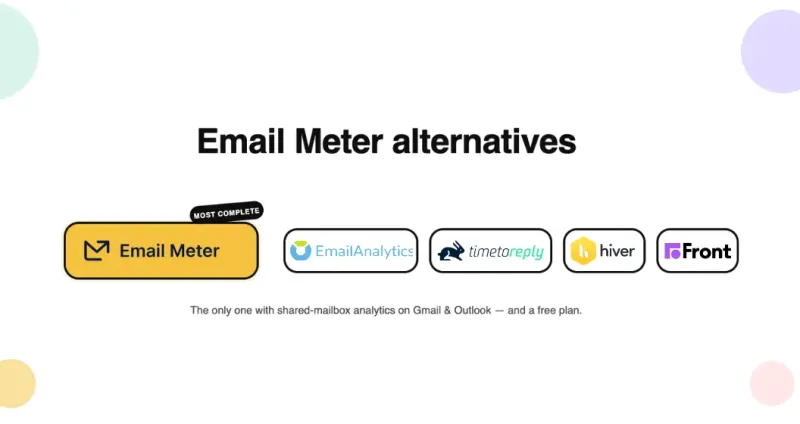
Third-party tools like Hiver, Front, Help Scout, Gmelius, Email Meter add full shared inbox functionality directly inside Gmail, assignment, collision detection, SLA tracking, analytics, and automation.
Best for: Teams that need professional shared inbox management with analytics, automation, and workflow features.
For a complete comparison, see our best shared inbox tools guide.
Google Workspace’s new native shared inbox (2026)
For years the honest answer was that Google Workspace had no true shared mailbox — only Gmail delegation and Google Groups Collaborative Inbox, both with real gotchas. That changed in 2026: Google now offers a native shared inbox that an administrator sets up directly from the Admin console (“Set up a shared email address”). Here is what is new, and why it matters for teams:
- The admin sets it up — not each user. A long-standing frustration was that an administrator could not create a shared mailbox centrally; you had to ask each user to delegate their own inbox. The native shared inbox is created and managed from the Admin console.
- You can finally see who replied. Messages go out from the shared address, with a “sent by” field showing which team member actually sent each reply. This fixes the most common complaint about Google Groups, where no one could tell whether a message had already been answered — the endless “did they reply yet?” guessing.
- It lives in Gmail. Delegates read and send from their normal Gmail, not the clunky Google Groups web interface that has no real mobile experience.
- No paid add-on. It is included on Business Starter, Business Standard and Business Plus with no add-on beyond your base subscription. One nuance to budget for: adding a brand-new person as a delegate still means giving them a Workspace account (a seat) — the feature is free, the extra users are not.
- It is rolling out in phases. Not every organization has it yet. If you do not see it in your Admin console, Google’s fallback is still delegated Gmail accounts.
It is a genuine step forward, but it still will not match a dedicated shared-inbox tool for assignment rules, internal notes and collision detection — and crucially, it gives you no analytics on response times or workload. Whichever setup you land on, that visibility gap is exactly where Email Meter fits: it shows average and median response times, who is handling the most volume, and which threads are going unanswered, on top of any Google Workspace shared inbox. Track your shared inbox performance free →
How do the options compare and which should you choose?
Gmail delegation vs Google Collaborative Inbox
| Feature | Gmail Delegation | Google Groups Collaborative Inbox |
|---|---|---|
| Best for | 1–5 people | 5+ people |
| Setup complexity | Simple — minutes | Moderate — 15–20 min |
| Max users | Up to 1,000 (40 simultaneous recommended) | Unlimited |
| Send from shared address | ✓ | ✗ |
| Unified sent folder | ✓ | ✗ |
| Email assignment | ✗ | ✓ |
| Status tracking | ✗ | ✓ Open / Complete / Duplicate |
| Collision detection | ✗ | ✗ |
| Separate from personal inbox | ✗ — delegates see all emails | ✓ — dedicated address |
| Analytics | Via Email Meter | Basic only — Email Meter for full analytics |
| Cost | Free | Free |
table { width: 100%; border-collapse: collapse; margin: 20px 0; font-family: Arial, sans-serif; font-size: 0.9em; min-width: 400px; box-shadow: 0 0 20px rgba(0,0,0,0.15); } th, td { padding: 12px 15px; } thead th { background-color: #2e72e3; color: #ffffff; text-align: left; } tbody tr { border-bottom: 1px solid #dddddd; } tbody tr:nth-of-type(even) { background-color: #f3f3f3; } tbody tr:last-of-type { border-bottom: 2px solid #2e72e3; } tbody tr:hover { background-color: #f1f1f1; cursor: pointer; }
For most customer-facing teams managing a support@ or sales@ address, Gmail delegation is the fastest and simplest route. Collaborative Inbox adds structure, assignment, status tracking, but requires more setup and training, and members still can't send from the shared address within Gmail.
What is the difference between a Collaborative Inbox and a delegated inbox?
A delegated inbox gives one or more people access to another person's existing Gmail inbox, the mailbox owner keeps their personal inbox, and delegates can read and send on their behalf. It's a one-to-few setup, best for executive assistant relationships.
A Collaborative Inbox is a dedicated group address (like support@company.com) that belongs to no individual, it's created specifically for team collaboration, with assignment and status tracking built in. It's a many-to-many setup, best for customer-facing teams.
The key practical difference: with delegation, you're sharing access to someone's personal inbox. With Collaborative Inbox, you're creating a new shared address that belongs to the team.
Google Workspace vs Microsoft 365 vs third-party tools
| Feature | Google Groups Collaborative Inbox | Gmail Delegation | Microsoft 365 Shared Mailbox | Third-Party Tools (Hiver, Front) |
|---|---|---|---|---|
| Shared email address | ✓ | ✓ (owner's address) | ✓ | ✓ |
| Send from shared address | ✗ | ✓ | ✓ | ✓ |
| Unified sent folder | ✗ | ✓ | ✓ | ✓ |
| Email assignment & tracking | ✓ | ✗ | ✓ | ✓ |
| Collision detection | ✗ | ✗ | ✗ | ✓ |
| Real-time visibility into replies | ✗ | ✓ | ✓ | ✓ |
| Internal notes | ✗ | ✗ | ✗ | ✓ |
| Automated assignment | ✗ | ✗ | ✗ | ✓ |
| SLA tracking | ✗ | ✗ | ✗ | ✓ |
| Analytics & reporting | ✗ | ✗ | ✗ | ✓ (+ Email Meter) |
| Automation & workflows | ✗ | ✗ | Limited | ✓ |
| Cost | Free | Free | Included in M365 | Paid ($10–$50+/user/mo) |
table { width: 100%; border-collapse: collapse; margin: 20px 0; font-family: Arial, sans-serif; font-size: 0.9em; min-width: 400px; box-shadow: 0 0 20px rgba(0,0,0,0.15); } th, td { padding: 12px 15px; } thead th { background-color: #2e72e3; color: #ffffff; text-align: left; } tbody tr { border-bottom: 1px solid #dddddd; } tbody tr:nth-of-type(even) { background-color: #f3f3f3; } tbody tr:last-of-type { border-bottom: 2px solid #2e72e3; } tbody tr:hover { background-color: #f1f1f1; cursor: pointer; }
What are the limitations of Google Collaborative Inbox for teams?
Google Groups Collaborative Inbox is a useful starting point, but it has significant limitations that become apparent as teams grow or handle higher email volumes.
No shared Sent folder
Replies sent by individual team members don't appear in a shared thread. If Sarah replies to a customer, her colleagues can't see her reply unless they manually check. This creates blind spots, especially dangerous in customer-facing teams.
No sending from the shared address in Gmail
Members respond from their personal Gmail accounts, not from the shared group address. Customers receive replies from individual email addresses (sarah@company.com) rather than the team address (support@company.com). This undermines the consistent, professional image a shared mailbox is supposed to create.
No collision detection
Two team members can independently draft and send replies to the same email simultaneously, with no warning. Customers receive duplicate responses, which looks unprofessional and creates confusion.
No internal notes or private comments
You can't leave private notes on a thread for teammates. Any internal communication has to happen outside the inbox, typically in Slack or email. Third-party tools like Hiver and Front solve this with internal comment features directly on email threads.
No automated assignment
Emails can't be automatically routed to specific team members based on rules, workload, or keywords. Every assignment is manual, which creates bottlenecks when volume is high or when the team is distributed across time zones.
Message moderation
Group owners can require moderator approval before messages reach the inbox, useful for public-facing addresses or sensitive teams like HR. Enable it via Google Groups → Settings → Permissions → Message moderation. Note: moderation adds a manual review step that can slow down response times for time-sensitive teams.
No automation or SLA tracking
There's no way to set response time targets, automatically route emails by topic or priority, or get alerts when threads go unanswered. Teams that need SLA compliance have no native way to track it. For what's possible with shared mailbox rules and automation in Outlook, the contrast with Google Workspace's native limitations is stark.
No analytics
Google Workspace provides no data on response times, workload distribution, or team performance for Collaborative Inbox. You can't answer the questions that matter: how fast is the team responding? Who's handling the most volume? What's falling through the cracks?
No CRM integration
Google Groups Collaborative Inbox has no native integration with CRM systems. Sales and customer support teams that need to track customer interactions and history alongside their email cannot do this without a third-party tool.
Scalability issues at high volume
As email volume grows, managing a Collaborative Inbox becomes cumbersome without advanced sorting, prioritization, and delegation tools. Google's interface is not optimized for handling very high volumes of collaborative emails, teams handling 200+ emails per day typically need a dedicated shared inbox tool.
What is the difference between users and groups in Google Workspace?
Understanding the distinction between users and groups is key to choosing the right shared mailbox setup — and avoiding permission issues.
What are users in Google Workspace?
A user in Google Workspace is an individual account assigned to an employee or team member. Each user has:
- A unique email address (e.g., jane@company.com)
- A dedicated inbox accessible only by them, unless they delegate it
- Access to Gmail, Drive, Calendar, Meet, and other Workspace apps
- Personal storage and settings
If someone needs multiple email addresses but not a separate inbox, email aliases work, for example, sales@company.com forwarding to jane@company.com.
What are groups in Google Workspace?
A Google Group is a shared email address that can include multiple users. Unlike individual user accounts, groups function as distribution lists, access control tools, or Collaborative Inboxes.
Groups allow teams to:
- Centralize communication: emails sent to support@company.com are received by all members
- Enable team-based email management with Collaborative Inbox, emails can be assigned and tracked
- Grant shared access easily groups can manage permissions for Google Drive, Calendar, and other services
- Simplify IT management admins manage permissions at the group level
The key difference: a user mailbox belongs to one person and has full Gmail functionality for a detailed comparison of when to use each, see our shared mailbox vs user mailbox guide. A group creates a shared address for team collaboration, but with limitations like no shared Sent folder and no native sending from the group address within Gmail.
How do you set up a shared mailbox in Google Workspace?
How to set up Google Groups Collaborative Inbox
In short: in the Google Admin Console (or groups.google.com), create a group, set its type to Collaborative Inbox, enable Conversation history, and add members with the right permissions. Members can then assign, resolve, and tag conversations at groups.google.com. One key limit: members cannot send from the shared address inside Gmail, replies come from their personal accounts.
For the full step-by-step setup, the most common problems and fixes, and the built-in filters to track assigned, unassigned, and completed conversations, see our dedicated guide: Google Groups Collaborative Inbox: setup, limits & troubleshooting.
How to set up Gmail delegation
Step 1: Open Gmail → click the gear icon → See all settings → Accounts and Import tab.
Step 2: Under "Grant access to your account", click Add another account.
Step 3: Enter the delegate's email address → click Next Step → Send email to grant access.
Step 4: The delegate receives a confirmation email, they must accept it.
Step 5: Allow up to 24 hours for access to become active. The delegated inbox appears in the delegate's Gmail sidebar in a separate tab.
How do you convert a user mailbox to a shared mailbox in Google Workspace?
Unlike Microsoft 365, which has a direct conversion process from distribution group to shared mailbox, Google Workspace has no equivalent native feature
Option A: Use Gmail delegation on an existing user account: Grant delegate access to team members on the existing account (e.g., support@company.com). The account remains a standard user mailbox but functions as a shared mailbox through delegation.
Option B: Create a Google Group with the same address: Create a Google Group Collaborative Inbox with the same email address. Note: if the address is already in use as a user account, you'll need to either delete the user account or use a different address for the group.
Important: If converting a user account with existing email history, export and archive emails before making changes, Google Groups don't inherit the history of a user mailbox.
What are the most common use cases and advantages?
Common use cases by team type
Customer support teams
A support@ inbox where your entire support team handles inquiries. Multiple agents can see incoming tickets immediately, assign them, and respond, without emails getting lost in individual inboxes or generating duplicate replies.
Sales teams
A sales@ inbox for managing inbound leads. Multiple reps can see new opportunities immediately and collaborate on closing deals without leads falling through the cracks.
HR and finance teams
An hr@ or billing@ inbox for handling employee requests or invoice submissions. Teams can collaborate on responses and maintain a consistent record of all communications.
Internal help desks
Whether it's IT support or facilities management, internal service teams can use a Collaborative Inbox as an internal help desk, receiving, assigning, and tracking employee requests with a full audit trail.
Why use Google Workspace specifically for a shared mailbox?
Compared to standalone help desks or third-party shared inbox platforms, building a shared mailbox on Google Workspace has specific advantages.
No training required
The shared mailbox feels just like Gmail, your team doesn't need to learn a new interface, adapt to a new workflow, or go through an onboarding program. Setup takes minutes and your team is productive from day one.
Full control of permissions
Access and authentication are fully controlled by your Google Workspace Admin. You benefit from all built-in Google security and access control features, two-step verification, audit logs, and access controls, without any additional configuration.
Top-tier security
Managing all communications through Gmail delegation means your emails never leave Google's servers. You keep Google's enterprise-grade security on all shared communications, no third-party servers handling your customer data.
Native integrations with your existing tools
Google Workspace shared mailboxes integrate naturally with the tools your team already uses, Google Drive for document sharing, Google Calendar for scheduling, and via connectors with Slack, Salesforce, Pipedrive, and more.
Pricing doesn't grow with each user
Most help desks and standalone shared inbox services charge per user, adding a new team member means a higher monthly bill. Adding a new delegate to your Google Workspace shared mailbox is free. Costs scale with your Google Workspace plan, not your headcount.
Easy onboarding and offboarding
The shared mailbox is its own standalone Gmail account, it doesn't belong to any single person. When a new team member joins, your administrator adds them as a delegate. When someone leaves, you remove their access immediately. No need to reconfigure inbox settings, forward emails, or worry about messages getting lost during the transition.
What are the best shared inbox tools for Google Workspace?
Email Meter, best for analytics on top of any Google Workspace setup
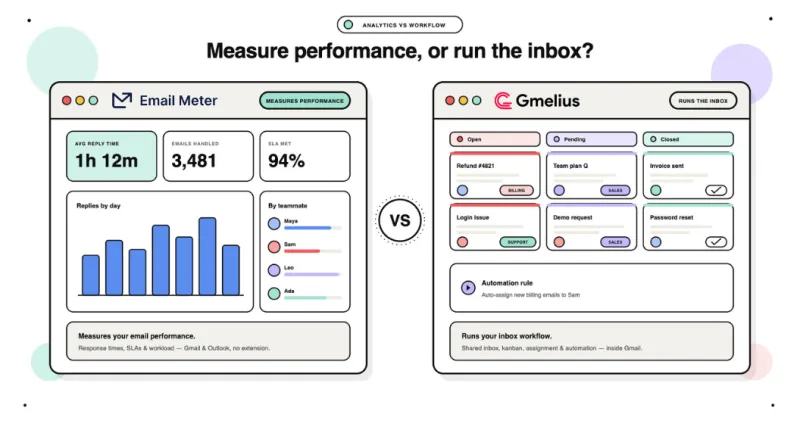
Email Meter is not a shared inbox tool itself, it's the analytics layer that connects to your existing Google Workspace setup and tracks what's actually happening inside it. Response time per team member, SLA compliance, workload distribution, unreplied email tracking, automated weekly reports, everything Google Workspace doesn't show you natively.
What Email Meter tracks:
- Average and median response time per team member
- Workload distribution — who's handling the most volume
- Unreplied email tracking — threads with no response after 24h+
- SLA compliance — set a target and track automatically
- Automated weekly reports delivered to managers every Monday
Real-world result: Payday HCM used Email Meter to monitor 5 shared mailboxes handling 200+ daily emails and cut response times from 5 hours to 2 hours, a 71% improvement. "Once you're able to actually see your stats, it gives you the ability to see if you're doing a good job, and who is really doing the work." — Lisa Reynolds, Operations Manager
Start tracking your Gmail shared mailbox performance free →
Hiver, best for Gmail-native shared inbox management
Hiver adds shared inbox features directly inside Gmail, email assignment, collision detection, internal notes, SLA tracking, and status management, without requiring your team to leave their inbox. Gmail only. From $19/user/month.
Front, best for advanced workflows and integrations
Front combines shared inbox management with CRM integration, automation, and AI-powered routing. Gmail and Outlook both supported. From $19/user/month.
Help Scout, best for customer support teams
Help Scout is a dedicated customer support platform with shared inbox at its core. Includes a knowledge base, customer profiles, live chat, and canned responses. From $20/user/month.
Gmelius, best for small Gmail teams on a budget
Similar to Hiver at a lower price point, shared inbox features inside Gmail, basic analytics, kanban view. Gmail only. From $10/user/month.
For a full comparison with detailed feature breakdowns, see our best shared inbox tools guide.
What are the best practices for managing a Google Workspace shared mailbox?
Operational best practices
Choose the right setup for your team size for 1–5 people: Gmail delegation is simpler and sufficient. For 5+ people: Google Groups Collaborative Inbox or a third-party tool.
Assign emails immediately, when someone picks up a conversation in Collaborative Inbox, assign it immediately. Unassigned conversations create confusion and duplicate responses.
Use status consistently, mark conversations as Resolved when they're done. The whole team needs to use the same system for it to work.
Set response time expectations, define SLA targets, for example, "acknowledge within 2 hours, resolve within 24 hours" and communicate them clearly. Without measurement, response times drift upward.
Review performance weekly, a 15-minute weekly review using three numbers, average response time, unreplied email count, SLA compliance rate, catches problems before they become client complaints.
For the complete best practices guide, see our shared mailbox best practices guide.
Security best practices
Enforce 2-Step Verification (2FA), make this mandatory for all accounts with delegate access. A compromised delegate account means a compromised shared mailbox and all the customer data inside it.
Run quarterly access audits, review your delegate list every 3 months and remove anyone who has changed roles or left the team. Access lists grow quickly and rarely shrink on their own.
Offboard immediately, when a team member leaves, revoke their shared mailbox access the same day. In Google Workspace, admins can remove delegate access instantly from the Admin Console.
Set clear data handling guidelines, brief your team on how to handle confidential customer information found in the shared inbox, what can be forwarded, what can be shared, what must stay in the inbox.
Monitor activity logs, Google Workspace stores all delegate activity. Use these logs, or Email Meter, to spot unusual behavior early and maintain a full audit trail of who replied to what and when.
How do you monitor shared mailbox performance in Google Workspace?
This is the biggest gap in Google Workspace's shared mailbox offering. Whether you use Collaborative Inbox, Gmail delegation, or a third-party tool, Google provides no analytics on how your team is performing.
This matters more than it sounds: in a shared inbox, messages easily fall through the cracks when no one clearly owns them — and Email Meter data shows that 89% of customers expect a reply in under an hour, while customers who wait more than 10 minutes for a first response are 50% more likely to churn within 6 months. Without analytics, you simply can't tell whether your team is meeting those expectations.
Email Meter connects directly to Google Workspace via the Gmail API and provides:
- Response time tracking: average and median per team member
- Workload distribution: who's handling the most volume
- Unreplied email tracking: threads with no response after 24h+
- SLA compliance: set a target and track automatically
- Automated weekly reports: delivered to managers every Monday
For a complete guide on monitoring shared mailbox performance, see our how to monitor a shared mailbox guide.
Start monitoring your Google Workspace shared mailbox free →
Frequently Asked Questions
Does Google Workspace have a shared mailbox?
It does now. As of 2026, Google Workspace offers a native shared inbox set up from the Admin console (on Business Starter, Standard and Plus, with no paid add-on beyond your base subscription), and it shows who replied via a “sent by” field. The older options still exist too — Google Groups Collaborative Inbox and Gmail delegation — but they are more limited, and the native shared inbox is still rolling out in phases. None of these options include analytics, so teams add a tool like Email Meter to track response times and who is handling what.
What is the difference between a Google Group and a shared mailbox?
A standard Google Group works like a distribution list, emails are forwarded to each member's individual inbox. A Google Groups Collaborative Inbox adds assignment and tracking, but members still cannot send from the shared address within Gmail and there is no unified Sent folder. A true shared mailbox allows sending from the shared address with full sent visibility, Microsoft 365 has this natively; Google Workspace does not.
What is the difference between Gmail delegation and Google Collaborative Inbox?
Gmail delegation allows shared access to one mailbox without a separate inbox or assignment features, best for small teams of 1–5 people. Collaborative Inbox provides email assignment, status tracking, and basic workflow tools, better suited for teams of 5+ people, but lacks a unified sent folder and the ability to send from the shared address within Gmail.
What is the difference between a Collaborative Inbox and a delegated inbox?
A delegated inbox gives access to someone's existing personal inbox, one-to-few setup, best for executive assistant relationships. A Collaborative Inbox is a dedicated group address created specifically for team collaboration, with assignment and status tracking, many-to-many setup, best for customer-facing teams.
Can you send emails from a shared address in Google Workspace?
Not through Google Groups Collaborative Inbox. Members reply from their personal Gmail accounts. To send from a shared address, you need Gmail delegation or a third-party tool like Hiver or Front.
Can multiple users access the same Gmail account at the same time?
Google explicitly discourages it. If multiple users frequently access the same account from different locations, the account may be temporarily locked down for exceeding a Gmail usage threshold. Use Gmail delegation or Google Groups Collaborative Inbox instead, both let your team manage a shared address with individual credentials, without risking account lockouts.
Is a Google Workspace shared mailbox free?
Yes. Gmail delegation and Google Groups Collaborative Inbox are both included with all Google Workspace plans, there's no additional cost to use either feature within your existing subscription. Third-party shared inbox tools like Hiver, Front, and Gmelius come at an additional cost ranging from $10 to $50+ per user per month.
What is the best shared inbox for Google Workspace?
It depends on your needs. For basic shared email management at no cost: Google Groups Collaborative Inbox. For Gmail-native workflow features: Hiver. For advanced automation and integrations: Front. For analytics and performance tracking on top of any setup: Email Meter.
How many delegates can you add to a Google Workspace shared mailbox?
Google Workspace allows up to 1,000 delegates per mailbox, though Google recommends limiting simultaneous users to around 40 to avoid performance issues.
What is a G Suite shared mailbox?
G Suite is the former name of Google Workspace, rebranded by Google in 2020. A G Suite shared mailbox works exactly the same as a Google Workspace shared mailbox, using Gmail delegation for small teams or Google Groups Collaborative Inbox for larger teams. The setup guides in this article apply fully to both G Suite and Google Workspace.
What is a Gmail shared mailbox?
A Gmail shared mailbox is a Gmail account or group address that multiple team members can access and manage together. In Google Workspace, this is achieved through Gmail delegation or Google Groups Collaborative Inbox, both free options included in every Google Workspace plan.
How do you create a shared mailbox in Google Workspace?
The two main options are: Google Groups Collaborative Inbox (go to groups.google.com → Create group → select Collaborative Inbox → enable Conversation history → add members) or Gmail delegation (Gmail Settings → Accounts and Import → Grant access to your account → Add another account → accept confirmation). Allow up to 24 hours for delegation access to become active.
Can you track response times in a Google Workspace shared mailbox?
Google Workspace does not provide built-in response time or workload tracking for shared mailboxes. Email Meter connects directly to your Google Workspace setup and tracks response times, SLA compliance, workload distribution, and unreplied emails automatically.
Can I track who replied from a shared mailbox in Google Workspace?
Not natively. When a delegate replies to an email, Gmail shows the shared mailbox address (e.g., support@yourcompany.com) as the sender, there's no built-in way to see which specific user sent the reply. Email Meter provides this visibility automatically, response times, reply activity, and workload distribution per team member across your Google Workspace shared mailbox.
Can I access a Google Workspace shared mailbox on mobile?
Gmail delegation inboxes are accessible on mobile via the Gmail app. Google Groups Collaborative Inbox is accessible via the Gmail app but with limited functionality compared to desktop. Third-party tools like Hiver and Front have dedicated mobile apps.
Does a Google Workspace shared mailbox need a license?
Creating a Google Group is free and included in every Google Workspace plan. Gmail delegation also requires no additional license. If you create a dedicated Google Workspace user account as a shared mailbox, that account requires a Google Workspace license, for Microsoft 365 licensing requirements, see our shared mailbox license guide.
How secure are Google Workspace shared mailboxes?
Shared mailboxes inherit Google Workspace's security features including secure authentication and access controls. Best practices include enforcing 2-Step Verification for all delegate accounts, running quarterly access audits, offboarding immediately when someone leaves, and monitoring activity logs via the Google Admin Console or Email Meter.
a { color: #2157D0;}