Most teams find out about a missed SLA when an angry client points it out. Too late. In this on-demand session, Lawrence from our Business Intelligence team shows how to catch slow response times early and stay ahead of your SLAs.
What you’ll learn
- The early signs of an SLA slip, sitting in your email data days before anyone complains
- How to set response-time targets your team can actually hit
- How to get alerted the moment a mailbox starts slipping
Turning this into a working SLA process?
Email Meter reports SLA compliance, response times and the threads that slipped past your target, across Gmail, Outlook and shared mailboxes.
Request a demo →Prefer to read first? See our guide on SLA response time benchmarks and how to track compliance.
Transcript
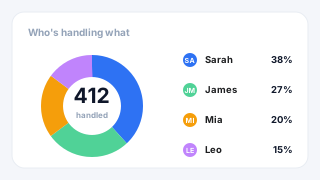
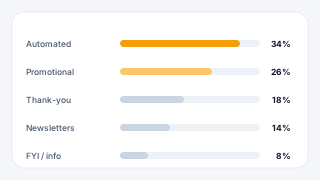
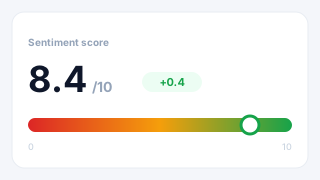
Laurence Edwards: to today's webinar. Which will be about SLA performance using Email Meter. So, for today's call, what I wanted to first tell you is a bit about how Email Meter works, for those of you that are unaware. So, what we do at Email Meter is we are an email analytics platform. So, what we do is we build analytics dashboards for your team, specifically, to address whatever part of, you know, visibility that you need. So maybe this is response times. Maybe you want to understand Who's contacting you, or the types of questions you're spending the most time on, or if maybe things have got more busy over the last few years, and you don't have enough staff to handle the types of queries that you're getting. Really, the problem that people come to us for is that they don't want to change their workflows, typically. So they don't want to have to start using a CRM and, you know, train the team on how to use it, and run all their email through it, because most likely, it's going to take time, and your customers are going to be the ones that suffer in this period. So what we do is we allow you to keep all of the workflows That you have right now, but also get the insights that you need to make decisions that will make your business function better. Now, an example of how we've done this for clients in the past. is, Fujifilm is a client of ours. Now, they came to us, and they were having problems with workload distribution. You know, members of their team were complaining, saying that, you know, we're getting too many emails, I have too much on, I can't get back to our clients in time, whereas other people, you know, aren't getting as much work as me. So it means that, you know, people are overworked, but it also means that the client suffers. Now, although you have people saying that they're overworked, it's hard to get a full picture of what's going on there. So we built a dashboard that focused on, for them, primarily, on workload distribution, so I can easily see, right, this is the average, this person's getting 20% above the average, we need to take some work away from them. And then also, the ability to see response times, you know, on a client-by-client basis. We did a customer story with Fujifilm that you can read on our website. We did it soon after, they started working with us, and they pretty quickly showed and over a 10% improvement in their response times. And we've been working with them, you know, for years since, to, yeah, to keep that improving, and to make sure that they have the visibility that they need to keep their client relationships good. Now, what we're going to do today is have a special focus on response times and adhering to SLAs, as I said before, which are service-level agreements. It basically means setting some kind of goal and making sure that you're completing that goal. So, I am gonna share my screen with you, and then I'm gonna show you… Some of the ways in which we've worked with clients in the past to achieve this. So… what we're looking at now is an example, of an email meter dashboard that I have, we've made for people in the past. None of this stuff is set in stone, you know, as I said, everything's customizable about this dashboard. So if you see something and you don't like the way that it looks, you know, you don't have to use it in the way that it's presented. You can change things, customize things. We want to really build a dashboard to suit your needs, so everything here is just kind of a base idea, open for customization. Now, the first page we have here is the SLA page. What this is designed for is, you know, let's say you come to us, and you say, okay, I work with clients, and as an agreement with the clients that I work with, I want to get back to things within 24 hours. If I don't, I'm in breach of contract, or, you know, maybe it's not even just contractual, but it's what you expect for the relationship with your clients. We can build a page for you that looks like this, where you set the goals at the top. So I've got these three buckets here, and I can customize the goals. Let's say, you know, I have 24 hours, and I'm doing quite well, so I want to reduce that to 12. You can play around with them as you use the tool, but it's just an easy visual way to know who's doing well on these response time goals within the team. And how many emails team members are missing. It also gives you the ability to click in to these emails and see what they are. So if I see Dwight here. has missed 4 emails, I can click in. And I can see what those emails were, I can see when they came in, I can see what the subject line was here. I can see how long it took to get a response, as well, here. So… If we are missing things, it's a really easy way to know who within my team needs training, or needs a bit more attention, and who on the client side is affected, so that we can, you know, have a view of these emails before they lead to churn, before they lead to us losing revenue. We can also filter these emails, too. So let's say I don't want to see any internal emails, or automated emails, or I don't want to see CC or BCC'd emails that maybe weren't directly for me. You know, even down to looking at performance with specific clients or groups of clients. You can play around with these filters and look at, you know, specific things, as well as time period. I've got the time filter at the top here. So yeah, you can be as specific or as general as you need to be with this page. Another thing to mention is that you can automate these reports as well. So let's say I know that Monday morning, I have a review of how the team's done with client emails for the previous week, and I don't want to have to go in and manually look around and see how the team's done. We can just automate these reports, so you can have report A going to Manager A, report B to Manager B. Yeah, we can automate all of that and just save you a bit of time. All of that is under the remit of the account management that you'd have with Email Meter. So you'd be assigned. an account management, an account manager, sorry, who would be there to understand what it is you're looking to do, to work with you closely to train the team, you know, make workflow recommendations to make sure you're getting the most out of email meter, and also, you know, they're there to kind of snoop around and make sure that everything's working properly, and that you're noticing the kinds of trends that That, that you're getting from, from email meter. And another thing, leading on from that is, as well as having these views that will tell you historically how you've done, also, you have these alerts here. Now, what these are, are the ability to just get a quick nudge, basically. If you're about to miss a goal with a client, you can build an alert to say it right. For this group of clients, if I want to get back to them in 12 hours, then I can build the alert, customize all the properties of it. So I can choose who the alert goes to, you know, whether I want it for this 3 members of the team here. I want it to apply to, let's say. Contact A. Contact. B… Contact C. And I wanted it for 12 hours. I can then also set the alert, like, who the alert actually goes to, who's being nudged, and you can layer these as well. So let's say the first alert for our most important clients goes to the person that manages them. The second alert goes to the person that manages that person, you know, if 12 hours later it's still been responded. We can even have a third alert that nudges the person above them. You can play around with these and how you want to use them. The idea really is that you've got some kind of defense system against missing emails from important clients. So you can play around with that and customize all the properties. No. Another way in which you could reimagine the SLA page is for emails sent and received. So, pretty common that, you know, especially people working in sales positions, you want to make sure that people are hitting goals and sending X amount of emails per day. You can have a view of all the members of the team, and just have a list of, you know, emails sent, Day by day. We also actually do this for another client of ours, where we have kind of a grid view, where I can have a view of the sales team, Monday to Friday, they're expected to send 100 emails a day, and I can have it in green if they completed the goal, or in red if not. And I can just have an easy view of the week, who's done what, how many emails were sent by each person each day, and, you know, if there's a trend of somebody not hitting that goal regularly, then it's a really easy way to To get that information. Now, another thing that people pretty commonly use email meter for, is for shared inbox insights. So, as I mentioned at the beginning, as opposed to using stuff like, you know, Zendesk, where you need to run a shared or delegated inbox through it to, you know. To manage emails, and then get the insights that that gives you. You can carry on using your generic addresses, you know, like sales, or customer support, or whatever it is. I'm responding to people that way, and email me to tell you who's been doing what, basically. So, if I want to get a view into our sales inbox… And easily see… Who's doing what inside of that inbox, so how many emails each person's sending, the percentage of workload handled by each person, how long they're taking to do things, then, yeah, we can give you that view, and it just means you can carry on working. You know, as you have been, but you can still understand, you know, if one person's doing the brunt of the work in the inbox, then you can see how all of that's panning out. And as I said, these metrics that you're seeing for each agent, you know, maybe a metric you're interested in is the average length of conversation by each agent. You know, it's a common use case of clients of ours working in support or account management, where they want to make sure that you know, they see how quickly agents are solving questions. So, maybe the person responds quickly, but it takes 12 emails for them to solve a question, as opposed to Agent B, who normally solves things in 3. We can put that in as a metric for you, again, even set goals and see if they fall above or below the average, and you know, who's more efficient. Yeah, all of this stuff can be… can be played around with. Now, another thing to mention is. maybe, you know, the responses aren't the only important thing here. Maybe just making sure that the inbox is in good working order and being managed correctly is important. You know, obviously, if I've not got 10,000 emails in the inbox, you know, it's more likely that the stuff's gonna be getting taken care of, because there's less, you know, less noise, less opportunity for stuff to fall through the cracks. So… With a page like this, what we can do is basically give you a snapshot at the end of each day of, of the state of each person's inbox. I can define what I want to see here, so right now it's showing you how many emails weren't replied to, how many emails weren't read. However, you know, maybe what's interesting to me is. how many emails were opened and had no action done to them, you know? Not forwarded, not, not deleted, not responded to, not archived, not labeled. It's really up to you, but the idea with this page is we work with you to understand what do you expect your team members to do, you know? And are they doing it? And so you can get a really easy breakdown of how many emails each person's getting, and then how many of them they're handling. We can send that to you, you know, on an hourly basis, daily basis, it's up to you. we've had success in the past with clients, you know, saying, okay, at 5pm, I want to see the state of everyone's inbox to make sure that we're not leaving things for the next day that are important, you know? using AI, as, you know, as I can talk a bit more to in a second, we can categorize things based on priority, based on question type, and so you know if there's something really important sat there in the inbox, then I can easily filter for it and make sure that it's not sat there for 2 days, and make sure that things aren't rolling over to the next day when, really, they're very important and they should be you know, they should be handled today. So yeah, just a bit of inspiration of how we can use this page to make sure that stuff that's going to affect revenue isn't, you know, being neglected. And to follow on from that point. This is an example of some of the ways in which we can use the, the body processing, you know, the AI body processing part of the tool. So, all of the stuff we've talked, talked about up until now has been just using the metadata of the emails. Now, what that means is basically the stuff around the body. So, the people involved, the subject line, the actions taken on the email. but not actually processing any of the body of the email. Now, another thing we can do is process the body and use an AI model that we trained for you to give you insights based on it. Now, that can be really anything, but some of the most common ways people have used it in the past is, you know, let's say a client comes to us and they say, I'm concerned about, you know, the type of performance that we're doing with our clients. maybe it's not the response times, maybe it's something else, maybe it's the actual level of service we're providing, but I don't know who's unhappy, because I'm working with hundreds of clients, and I've got a big team, and it's just hard to get the kind of, you know, vision of what's going on. We can build a page for you that looks like this. where we train the model to understand what does a content, you know, response look like, what's an okay response? What's a negative response? And I can get an easy view of all of our clients, next to one another. And I can see who's unhappy, who's happy, and who's kind of in the middle. Obviously, the ability to select specific clients then, and go down and see a summary of all of the emails. That they've sent to us, so if I want to see what's negative and why it's negative, we can do an AI summary. for this example, basically saying that we've missed the deadline, and this, you know, this infers X amount of damages. You know, if you're working with a large team, it's hard to get these kinds of insights in one place, and so, yeah, the idea behind this is just to, yeah, to give you that extra bit of visibility and flag important things so they don't affect your revenue. This can also be by topic as well, so it's pretty common that, you know, maybe we're good at some things and not good at other things, but it's pretty hard to see the trends of that. So yeah, we can also show you the kind of sentiment that comes with each question type that comes in. Yeah, I'd have that in a list as well. There's a load of other things that you can use this AI model for, but this is kind of the most common example. Yeah, so I mean, that is the majority of what I want to talk about. The only other thing I wanted to mention before we move on to any questions is we can also integrate with other tools. So, let's say you're not just working out of email, you know, just out of email, but you also work from Salesforce, or HubSpot, or whatever it is. We can integrate with those tools, and we can pull data from them and put them into email meter. So, you know, let's say you define, you know, different clients by different, you know, different denominations in in HubSpot or in Salesforce, and you've got no way to use that data, then we can pull that data into EmileMeter and just enrich email meter's data, you know, with that. So, you know, every time your client listings change, or something changes, the email meter's updating via API, and it just means that you can basically have more of a realistic view on, you know, anything that you're… any data that you're using in those systems, or also an internal system, an ERP, that you're using internally. Just a case of talking to us. We are a productized consultancy, so we're very flexible in that sense. Yeah, just a case of having a conversation with us, and then we can investigate and see what we can do, and how we can use that data for you. Yeah, so thank you very much for listening today. I just wanted to ask, really, if there are any questions, if I can… If I can answer for… for any of you.
Melanie Lelait - Email Meter: Yes, thanks a lot, Lawrence. So yeah, as Lowen said, time for the question. So remember, you can use different type of features to ask your question, so either in the chat, the Q&A, Or raise your hand and unmute so you can speak. So, Lawrence, a question came in the chat. So, I use a CRM for my client information. Can we use this data in email meter?
Laurence Edwards: Yeah, absolutely, absolutely. So, as I was saying, there's a load of different ways that you can use CRM data with an email meter. It's pretty flexible, because we're building each tool for each person, so, I mean, we've done it in the past, where we're importing email meter data and, you know, using it within your CRM to have a view like that. Also pulling, you know, data from email meter in. to… to pulling data from the CRM, sorry, into email meter is, is something that we do for lots of clients. And another product that we didn't talk about is if you're using, you know, as kind of a Looker Studio dashboard or something for, you know, your insights right now, we can also just give you access to your data in raw format. We'll give you access to our data warehouse, which is BigQuery, and then you can use our data to build your own views. So there's a load of different options there, and yeah, it's just, it's up to you as to how you use them.
Melanie Lelait - Email Meter: Lovely. And if we are talking about the building time for a dashboard like this, what would you respond?
Laurence Edwards: Yeah, absolutely. It's pretty quick and easy. For all the metadata-type features, we normally say about a week, basically, building time to build the dashboard, we'll get you to install the application, do the onboarding form, and build the dashboard, and then… For the body processing features, just because we need to train the model, it takes slightly longer, we could expect that to take, you know, two weeks to a month, but it's really… because there's a few things we need from you there, so kind of examples of, you know, what you define to be a good response, or types of questions you typically get asked, so we can kind of personalize the model for you. But yeah, it depends on you slightly there, but we normally say a couple of weeks to a month.
Melanie Lelait - Email Meter: Perfect, and maybe one last question? How my team would get access to the dashboard?
Laurence Edwards: Yeah, good question. So, it's, again, really straightforward. It's just, using single sign-on. So, you can sign in directly using your Gmail login, or your Outlook login. The most important thing here is that you don't need to, like, enable anything to get access. Like, everything is done with email meter from the admin level. So… For the person using the dashboard, it's really straightforward, and they don't need to do anything. And yeah, it's up to you as to how you manage this access, like, people aren't notified, or… Yeah, it's really up to you as to how you do this, but yeah, in terms of getting access, it's really straightforward.
Melanie Lelait - Email Meter: Great. Thank you so much, Lawrence. I don't know, I think there's no more question? So, if that's the case, we will, bring today's session to a close. So, thanks a lot, everyone, for joining and, for participating with your questions. And, of course, thank you to Lawrence, for taking this time and sharing all this insight with us. So we've got our next webinar coming up in, April 21? So, we will show, basically, how the team is using Email Meeter to make, really, the email workflow easier, so I will share the link directly in the chat so you can have it. And, yeah, if you have any questions, or you want to chat a bit more, we, so the team is, staying a bit longer, so don't hesitate to stay as well, and, go live to the to ask all your questions, and if you prefer, you can as well reach out to Lawrence directly per email. We will add, as well his email address in the chat. And yeah, thanks everyone for joining. Have a wonderful day, and hope to see you next time. Bye-bye!
Laurence Edwards: Yeah, thanks again, everyone. And just to mention before we finish, if you have any other general questions about email meter, and, you know, because I know it's been a bit specifically tailored to SLAs today, if you have any questions, seeing as you have all of us here, please feel free to put them in the chat, or unmute yourself, or we can unmute you, sorry, and you can talk. Yeah, just let me know. As Melanie said, we'll stick around for a few more minutes, so there's no rush. Yeah, so please feel free to… to shoot us a message, and we can… yeah, and we can go through that with you. We can stick around for a few more minutes to make sure… to make sure you're not furiously typing to get that… get that through. So I'll just stop sharing my screen, and we can… we can wait for a couple of minutes longer. Yeah, as I said, either feel free to raise your hand, we've allowed that ability for you, or just pop a message in the chat. Perfect. Well, it seems there's no more questions. Thank you very much for joining us today. You've got my email in the chat, it's just laurence at emailmeter.com. So any questions, please feel free to shoot me an email and get in touch. And if not, as Melanie said, we look forward to having you for the next webinar. So, thanks, everyone.
Melanie Lelait - Email Meter: Thank you, bye-bye!