Shared inboxes sit at the heart of your customer communication, and most teams run them with almost no data. Here is what that costs you, and how to fix it.
What you’ll learn
- Why shared inboxes hide <a href="https://www.emailmeter.com/blog/webinar/who-is-handling-what-shared-inbox/">who is handling what</a>
- How to measure individual performance without micromanaging
- The signals that show a shared mailbox is overloaded
Managing a shared inbox across a team?
Email Meter shows who replied, how fast, and which threads went unanswered, on the shared mailboxes you already run.
Request a demo →Prefer to read first? See our guide on how to monitor a shared mailbox.
Transcript
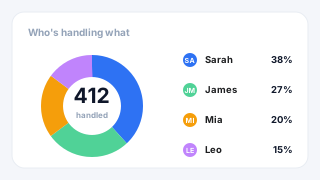
Laurence Edwards: I wanted to give you a bit of an insight, for those of you that aren't familiar with what we do, about, about how EmailMeter works. So, basically, EmailMeter is a customizable email analytics platform. So what we do is we build analytics dashboards around what you're looking to get insights into. So unlike a system like a CRM, where you need to begin running your emails through this system, you know, it requires training, it requires some kind of change to your workflow. what we want to do is really give you the insights that a system like that might give you, and more, without having to basically have some kind of change in workflow that affects the customer experience. So, yeah, with our dashboards. we, yeah, we customize them around what you're looking to do, basically. So, an example of a way in which that we've done this is one of our… with one of our customers, Fujifilm. Now, they came to us with a few different issues. The main problem being, that they had team members complaining that they felt that workload was not evenly distributed amongst them, so people weren't happy about that. But then also, they saw that customer experience was being affected by that, because, you know, people were overloaded and couldn't manage, you know, the people. Couldn't manage the accounts that they had. So, what we built for them was a dashboard that focused on how many emails each team member was handling, you know, that broken down by client as well, so I can see how many clients each person is in contact with, if it's realistic for them to be doing that, and the level of service they're providing to each of them. So I can easily see who's overworked, who's underworked. And the level of service that clients are receiving. So, we have a customer story about this on our website that my colleague Melanie will post in the chat, but what we saw immediately from that is that they were able to reduce their response time to customers by, I think it was about 11%, and it's something that we've been working with them on since. So that was about 4 or 5 years ago, and they've been a client since, so… You know, we've been customizing the dashboard, changing it as they use it to, you know, to deal with new use cases of theirs, and to make sure that their customers get the experience that they want, and that their team is happy and, you know, working with equal distribution. So, what I'm gonna do now is I'm gonna share my screen, and I'm gonna run you through a few use cases of email meter, and if you have any questions as we're going through, please feel free to pop them in the chat, and I can handle them as we go. So, just one second… So, what we are looking at right now is just an example dashboard for Emailmeter. So, as I said, they're completely customizable, so, you know, what you see here, don't think that it's set in stone, you know, we can shop and change these dashboards, exclude bits that you want, include bits that you like. Yeah, these are just kind of a bit of food for thought for how we work. And for any Office US enjoyers, you'll see the Dunder Mifflin logo, so I hope you get a laugh out of that. So, the first page I wanted to show you… is one of our more general shared inbox pages. Now, really common use case when it comes to people coming to us. is that people have multiple people using shared inboxes. So, for example, I've got an inbox for sales, I've got an inbox for customer success, I've got an inbox for accounts, I've got loads of people using those. But I don't know who's doing what, you know? I don't know what the level of service is that I'm providing inside of those. I don't know if the workload has increased exponentially over the last couple of years, and, you know, that's gonna lead to, as I mentioned with the Fujifilm story, you know, people being overworked or underworked, and the customer suffering because of it. So… For this page, it's a pretty simple breakdown of the traffic for the inboxes that we have. So… First, I select the filters at the top, we can select the date range that we want to look at, we can select the inboxes that we want to look at, even down to the types of emails we're including on this page. So, you know, if I want to get rid of internal emails, because I'm not interested in them, then I can deselect. Or, if I want to get rid of automated emails. or CCs or BCCs that, you know, might not necessarily need a response, then we can do all of that, even down to removing or focusing in on specific companies or points of contact that we're working with. Now, when all of that's selected, we have our list of addresses down here. So it'll tell us the traffic for each inbox, how many emails we'll receive. How many emails were sent? how many emails were replied to, and then the overall response time for this inbox. Now, if I want to look at one specifically and see who's done what, then I just need to click the inbox. Go down… And it's going to give me a breakdown of who's done what inside of that inbox. So I can see how many emails were sent by each person, the percentage of workload that that translates to, and then how long each person has taken to do their work. So, it's super easy to see distribution of workload and the level of service that each person provides when they're in that inbox. Now, if you want a bit more insight into the performance of these agents, so let's say, you know, I've discovered now that Jim is doing a good chunk of the workload here, and I want to find out more about what he is doing. I can click in to this page. And get a bit more of a detailed breakdown of what his performance looks like inside of that inbox. So I can see, for the days that we've selected, that we're looking at, I can see how many emails he's sending day by day. You know, if that's consistent, if that changes regularly. Also, I have the average thread length score. Now. what this is, is basically how many emails typically are in a conversation when somebody's, you know, talking to someone via email. This is a metric that we can put, you know, all over the dashboard. The idea here really is to see how effective people are at solving things. So, yeah, you've got an understanding of how many emails typically people are sending when they're talking via email. Then if I go down, an understanding of the, you know, the response time of this person over time. So, if, you know, because we actually give you historic data with email meter, so retroactive data from when you signed up. To 2 years back from before you signed up. So, let's say I sign up, and you know, I know the team is kind of on their best behavior, but I want to see how things have changed, then I can expand this to the last two years, and I can understand the trends for response time. And see, you know, maybe it's just been a good week, and typically someone's taking 4 times longer to respond to emails. You've got all of that data there. Even down to setting response time goals, and then seeing how well the team is completing them. So… on a graph like this, I can say, okay, you know, I expect my team to respond to clients within 24 hours, but I want to see, you know, what the trends look like. We can set multiple response time goals here, and I can see how long people are taking to respond to things within the goals that we've set. And so, for example, I see one email was missed here on the goal. I can easily click into that. Go down… And I can see the emails that were included in that. So I see when the email came in, who it came to, what the question was, here, by the subject line, and how long it took to get a response. So, you know, if people are missing emails, you know, within the goals that we've set, it's super easy to know When it happened, who it came from, what the question was, and how long it took to get a response, on a page like this. No. the next… The next page I wanted to show you… is… The unreplied email analysis page. Now, another super common use case, is that… you know, people want to see, kind of, the state of their team's inbox. You know, maybe I've got people that are drowning in loads of emails and aren't handling them, and the response time metrics, they'll tell you how quickly you typically respond to things, but it's not really a fair representation of, you know, how well the inbox is being managed. And with a page like this, you can pretty easily see that. Now, right now, this page… is set up to show you, in the date range you selected, how many emails came in, how many of those didn't get a response, and how many of those didn't get read. So… If I go down, I can see that per team member, and it's pretty easy to see, you know, if I've got someone in my team with 1,000 emails that are unread versus, you know, someone 48, you know, it's pretty clear to see that someone's kind of struggling there. Now, something to mention. is that maybe replying to every email is not the most important thing to you. You know, maybe you just need something done. This is one of the beauties of the customizable nature of email meter. So, let's say you expect your team to either reply or, you know, forward the email to someone, archive the email, delete it, and you want to consider that an action. You know, we can really easily make this page say, okay, this person received X amount of emails. Of those, didn't action. You know, 70%, or 700 emails, and these are the ones they haven't read yet. So yeah, this might be more of a fair reflection of how the team is, you know, doing their work to you. Or whatever the workflow is, you know, we can basically change the page to suit that. But yeah, just a bit of an idea of how to use this page. And you've also got the option to look at all the raw data for any of those categories that we've defined. So, if I want to sit, you know, if I want to have a look and see what's been sat there unread in the team's inbox, then I can really easily do that. you know, with the filters, let's say I'm concerned about a client, and I want to make sure that there's nothing sat and replied from them, that I can really easily filter for them. See who's responsible within my team. And then see what the emails are, and how long they've been there. So yeah, useful to get an overall view of the team, but also to be able to investigate these specific issues. Now. The next thing I wanted to show you is a bit more of a developed view of the response time performance that we just looked at. Now… As I mentioned before, it's really common with clients of ours that people have, you know, maybe internal goals, or maybe they literally have, you know, a service level agreement with clients of theirs that says they're expected to respond within X amount of hours. And if that's not met, you know, that's obviously a big issue and could be losing revenue with you, or at least damaging, you know, your relationship with that client. So, a page like this can be super useful, and it's really easy to read as well. So, you select, you know, the response time buckets at the top, based on whatever it is you want to achieve. And then down here, we can define by, you know, whatever, by department, by inbox, or by agents using your shared inboxes. So we could just say this person's performance across all of the shared inboxes, and have it shared like this. And then I can really easily see, okay, for Angela. you know, she's had two emails fall into the, kind of, medium category, but not missed anything. However, for Dwight, has missed 4 emails. So I can click in, again, see what the emails were. See what the question was, and see how long it took to get a response. And something else really important to mention is that with all these views, you know, you've got the opportunity to go into the dashboard, and to investigate specific things, but what we also have is As a part of this service, you'd be assigned an account manager, and it's their job, amongst other things, to know when you need this data. you know, if you've got a really important meeting on Monday morning that is looking at how well the team responded last week, we can automate all of these reports, so that you don't have to go in and do any specific filtering. We can make sure that the exact metrics that you need for your meetings or your reporting are there waiting for you when you need them. Yeah. we… that's… part of us wanting to, you know, be flexible and save you time and effort, is, yeah, is having those automated reports. So, yeah, that'll be part of us providing this service for you. No. Just another few features to show, generally. the first thing I wanted to show is, especially when it comes to teams that have lots of remote workers, you know, obviously it's much more normal since coronavirus, so it's a really common use case that people come to us and say. I've got people working remotely, but I'm not sure if people are actually doing the hours that they're allotted to be doing. A graph like this is super useful, and it's pretty quick and easy to understand. So, what this is, is just a heat map breaking down how many emails people are sending hour by hour, day by day. So I can see, you know, if someone's meant to be working 9 till, you know, 9 till 5, and they're only sending emails 3 till 6, as relaxing as that might be, you know, maybe it's not the best thing for our business. So, it's like, yeah, it's good to have a graph like this. And we can filter by individual team members as well. So let's say, for example, I just want to look at… Jim? then I've got an easy way to see when he's working, and if it lines up, you know, with when I expect him to be working. Wow. I also wanted to mention that a big part of this response time alerting is, is… these custom response time alerts that you can build within the dashboard. Now. The way these work are, you can set up specific alerts. but customize all of the fields for these alerts. So, let's say, with one client, you know, I've got a response time goal of 12 hours, maybe, you know, a client that I want to take particular care of. I can name the alert SLA Gold Tier. I can say, just for Michael, because he's the one that takes care of this account. say, okay, the name of the company is EmoMeeta. And I can say, okay, for this client, 12 hours. I can have this alert going to Michael. I could also have it going to Michael's manager. You know, I can also layer these alerts, so Michael gets the first alert after 12 hours. His manager gets the alert after 24 hours. You know, that manager… the manager of him gets the result after 48 hours. If you've got, you know, people that you want to spend, you know, give extra care to, then an alerting system like this is really nice. You know, it's good to have retroactive. Insights, but having something there to remind you when things are going wrong is, yeah, with our experience with our clients, is something that's really useful and can save you… save you revenue, and relationship with clients. So yeah, we have that. And that nudge can be via email, or also, if you're using Slack internally, we can, you know, we can use Slack for that. It's really up to you, whatever you find most convenient. But what it will look like will be an alert saying, hi, you have this. email from this person, this was the subject line, and you're about to pass this goal. So yeah, pretty easy to… pretty easy to use. And that is the majority of what I wanted to show you. So I'm not sure if there are any other questions that you had about anything I mentioned, or if you had any questions generally about the tool, please feel free to, you know, to fire away, there are no silly questions. Yeah, so please let me know. Okay, Dominic, great. Yeah, so Dominic's question was. Our agents log into the same inbox, so how can you tell who replied when they share a login? So, Dominic, when sharing logins, like sharing the password and email address, we can… I mean, depending on if you're using Outlook or Gmail, we can use it by tracking labels. In Gmail, or, you know, categories or folders within Outlook. So we can make a page that just breaks down performance by label, like, if we know… we just know it's specific team name labels, then then we can do it that way. But what I would say as well is, you know. using a shared or delegated setup, if people are, you know, signing off the name at the end, it wouldn't change the workflow at all. And even if you're not signing up the name, you know, there's another way that we can set that up as well, using audit logs. So, what I'd say for that is, you know, we can definitely work with you on that. And if you want to book a call, then I can explain a bit more about what the other options look like for how you can use that inbox, because it might be the case that it will be exactly the same workflow. It would give us, you know, a bit more flexibility on the monitoring, and most importantly, it would give you a bit more security on that inbox, because obviously it's, sharing the login is a bit of a security concern. But yeah, we'll post my meeting link in the chat, and so, yeah, if you do want to book a call and ask me any specific questions about that, then I can explain. How all of that works. Nice. Any, any other questions from anyone?
Melanie Lelait from Email Meter: Yes, Lawrence, thank you so much. You've got, as well, a question from Irina. I use a CRM for my client information. Can we use this data in Email Meter?
Laurence Edwards: Yeah, very, very good question, Irina. So, yeah, absolutely we can. We can in a few different ways, really. The most common way is us connecting via API to the tool you're using, you know, so let's say that's, you know, HubSpot, or Pipedrive, or, you know, and you want to import, for example, contact data, and you want to have that data automatically updating, you know, based on the tagging you're doing there. So, you know, if people are becoming new clients, if the value of clients are changing, but you don't want to have to manually update that in our system. we can connect via API, have that importing at the frequency that you choose, and basically have so that it's just enriching the data that you have on your email meter dashboard, but from you know, whichever other system you're using. And this doesn't have to be a big CRM, you know, we're also doing this for people, you know, people's ERP systems internally. Yeah, it's just a case of having a quick chat with us and understanding what it is you use, and then we can investigate what the API looks like and the types of insights that we can pull. Yeah, again, this is one of the benefits of email meter being kind of customizable tools that we can kind of learn and Work around these new use cases.
Melanie Lelait from Email Meter: Lovely. I just wanted to remember as well, for all the participants, you can, so use the chat, obviously you're doing it, but, you can as well raise your hand, I'll use the Q&A so we can have all your questions. And there's another one, what is the building time for a dashboard like this?
Laurence Edwards: Yeah, so the building time for a dashboard like this kind of varies on what you're looking to build. You know, typically we say for people to expect about 5 working days for these dashboards to be built. Obviously, you know, we're a productized consultancy here at Emil Meter, so we really build everything and anything for people, so if it's something that's, you know, much more complicated, that might take slightly longer. But yeah, I mean, for metadata-based insights, you know, typically we say to, you know, expect about 5 business days, but it can vary a little bit based on what you're looking to monitor, basically.
Melanie Lelait from Email Meter: Lovely, perfect. I don't know if there's any other question. Yeah, how does my team get access to the dashboard?
Laurence Edwards: Yeah, so actually, this is a really easy one. It's just by using single sign-on, so… basically, if you're using, you know, Microsoft or Gmail, then you don't have to do anything. Everything is set up from the admin side, so your, you know, your IT admin will install the application and give your team access, and then from there, once you've listed the people that can have access to this dashboard, they can just log in using single sign-on. So, it's really easy to roll out for teams of any size. Yeah, another benefit of having that kind of admin-based setup.
Melanie Lelait from Email Meter: Perfect. I don't know if there's any other question, if we can close, today's, live workshop, so I let you bid, some minutes, and, Okay, I think that's, That's officially the, the end of our session. Thank you so much for, joining, for asking, all this, interesting. information. And yeah, as we, said in the intro, we've got this, fireside chat, so if you still have the time to… to keep, connected, we'd love to… to explore more and chat a bit, with, leaders that are here with us, and yeah, we will as well add, Lowen's info if you had any, any information, or if you want to, to know more about, email meter, and, we wish you a very nice day.
Laurence Edwards: So, yeah.
Melanie Lelait from Email Meter: Perfect, so we will start the side-to-side chat. So, we have two people joining us for this, special one, so we've got Jennifer and Kate with us. Normally, Jennifer and Kate, you are in here with me, with your, you are able to speak, that's lovely. Do you want to present yourself to the people that are live with us? Jennifer, maybe?
Jennifer Pantin: Sure. So first, please disregard the fact that I'm in a neck brace, had a little bit of spinal surgery, it's bedazzled, it'll be off soon. But I am a customer success leader. I've been working in the industry for well over a decade now. I have headed up both CS and support, so I have seen very much the value of inbox maintenance and why it is important.
Melanie Lelait from Email Meter: Lovely, perfect. Jennifer. Kate? Yeah.
Kate Sygrove: And, yeah, my name's Kate Saigrove, I'm Director of Customer Success and Support, so a similar sort of role overseeing both sides of that. Many years' experience in SaaS, and yeah, and I totally agree, right, that having an overview about everything that's going on is crucial to running a CS team.
Melanie Lelait from Email Meter: Perfect, thanks a lot for the presentation, Jennifer and Kate. And, yeah, so, we were chatting together in, on, on LinkedIn, so, Kate, maybe my, my first question is to you. We put, we spoke about, A CSM can personalize outreach, but to personalize this outreach, you need to have info on the account, so I'm speaking about which email went unanswered, who respond to what, if the account has been going more quietly. And in practice, what breaks down when that context isn't here?
Kate Sygrove: Yeah, I think it's… I mean, the thing that came to mind, actually, when we were talking about this is actually, I mean, confidence breaks down. I think for the customer success manager, or the people within the commercial teams that actually are going to be reaching out, if you don't have a clear picture of what's been said, what's been ignored, who's actually engaging, then I think what's going to happen is that you end up kind of basing your outreaches on assumptions, and maybe on the last thing that happened, as opposed to a full timeline of pieces that have been happening. Not just emails, product usage, and various other touchpoints as well. I think the other thing that breaks down that came to mind very quickly were handoffs. I mean, we work within SaaS, we work within, sales to customer success, customer success to account manager, a number of different interactions where you have multiple people from the same organization engaging with one customer. And if you don't have visibility in regards to what's been said or what hasn't been said, you can easily go into dialogues with the customer without the full picture. And it will probably, affect you professionally, and could very well disrupt the, the engagement that you have with them.
Laurence Edwards: Yeah, I had just a follow-up on that, Kate, because I was just, me and Manly were talking about this before. before the webinar. Like, even with this, you know, with this system in place that you've been using, do the CSMs ever feel like they're missing any context, or I know you're saying that the difference between before and after is obviously much, and that it's super useful. Do you find that paints the whole picture for you, or, you know, what's your experience been with that?
Kate Sygrove: with the CRM that I'm using, or… Yeah. Yeah, yeah. I mean, totally, 100%. I mean, for me, the interactions, it's not just email, that's one touchpoint that we're, that we monitor. We have product usage data alongside that, support tickets also pulled into the same, interface. I mean, to be honest, now it's, it's going beyond logging into the CRM. I actually use Claude for a lot of it, so actually cross-referencing data points, for the individual client, making sure that we've. we've got a full overview before we go into those interactions. And then the big thing for me, and I'm sure Jennifer will probably adhere to this as well, right, you just want to be proactive, and you want to get ahead. of the conversation, and the more overview that you have, the more you can do this. We had… we had one just recently, for example, came top of mind when we were thinking of… we have a renewal dialogue, we actually have an expansion opportunity with a customer. But actually, when we reviewed the account, there's also a number of unanswered emails. There were actually some support tickets that were still ongoing as well. So… we kind of readjusted the touchpoint to address that up front, to talk to the customer, to make sure that we're answering the questions that they have via support before we went anywhere near the renewal dialogue, and especially not the expansion dialogue. So, I mean, I think it really painted a picture for me that you can… you can be on a track Kind of your track that you think you want to do with that customer. But actually, if you kind of take a little bit of a step back and look a bit broadly, that touchpoint might change very quickly based on other bits of information that you have.
Laurence Edwards: For sure, that's interesting. Yeah, interesting.
Melanie Lelait from Email Meter: Yeah, maybe, Jennifer, you… you want to add something? Because we were, discussing more about the… the… how to, identify the CS, so the client churn signal before it's too late, but I don't know if you want to add something about, what Kate is saying?
Jennifer Pantin: No, but I think what my thoughts around the health signals tie into what she was saying, so… Nps can be a very latent health score indicator, and so you want to be proactive with those emails, because that is how you get ahead. And so, the data layer of what you get back from emails, the volume, the frequency, the… who is sending it, all of that gives you a lot of information if the customer is at risk or not, and this gives you the opportunity to be proactive. Plus, it's the human layer added in that AI can't replace. It's, reading tone, urgency, subtext. That lets the CSM move the needle ahead instead of being reactive.
Melanie Lelait from Email Meter: Yes, exactly. I know that, we, we've been discussing with, with that, with, with Lawrence as well, you see that with, your customers as well in your daily, work.
Laurence Edwards: Yeah, absolutely, absolutely. I actually had a question, I mean, just a general one for you, Jennifer. Like, have you ever had information to say that, you know, the account is good, and everything's in the green, and then had them churn? Like, have you ever had any shocks like that? I know that I've talked to clients in the past where, you know, that it, you know, that things have taken them by surprise. I don't know if that's something that you've experienced.
Jennifer Pantin: So it's… it's funny, I did, very early in my career, when I was still an individual CSM, they… all of the indicators were strong and good. It was a large account, and they said that they were going to renew, But their email cadence did drop off, and I noticed, and I thought it was strange, but they kept reassuring me that they would be renewing, they were just very busy at their end, and then at the last minute. They did not end up renewing, and It was certainly a shock, and also a warning for me for the rest of my career, of you have to look at all the indicators, not just rely on what somebody is saying, or what a health score is saying, because they were giving us 10s. So that's a very specific example of where, like, hey, different people are emailing me than usual, and they're not responding. Something's wrong here.
Laurence Edwards: Yeah, I was speaking to a client the other day, and they said exactly the same thing. That's kind of the reason, like, I prompted the question. So, it's interesting that you've said the same, and… I mean, yeah, it makes sense, really. I guess no one wants to be the bad guy, and maybe so, you know, if they like you, especially, and they want to be saying yes, yes, yes, and be nice, but, you know, I guess there's other… other indicators. Yeah, but no, it's interesting.
Melanie Lelait from Email Meter: And, so Jennifer, in a made box, shared or not, how do you… do you see the signal before it's too late? How do you create this kind of visibility?
Jennifer Pantin: I mean, it depends on, in a shared inbox, whether you have one person delegating and keeping track of everything, and the individuals are responsible for the conversations, versus, Distributed, and everybody is responsible for their individual… thread. But either way, whether it's individual or one person, you have to trust the ownership of those people to be tracking those metrics coming through.
Laurence Edwards: I just had one general question as well for you, Jennifer. Like. when you started having these metrics, you know, slightly more detailed metrics and using them in your day-to-day, how do you then, you know, how do you then implement that? Like, and do you find that people are, you know, responsive for that? Because, I mean, we, you know, we obviously handle the other side of giving you the data, but, like, in your experience, how has it been managing that data and kind of Affecting the change within your team with it?
Jennifer Pantin: Sure. So, when you see data like that, it's a flag, and Interestingly, emailing them more is actually not the solution, and Kate, I'm sure you might experience that, because they're not going to email back. What I've found is the most effective, it's not always, but the most, is Trying to provide them with value from whatever your platform or product is. In a way that they have not experienced before, whether it's presenting them with some thought leadership or innovation, to remind them why they're using it in the first place.
Laurence Edwards: Yeah, absolutely. Very interesting.
Melanie Lelait from Email Meter: And I know, Kate, you are not, using, email to, to gather those, this insight. Can you tell us a bit more in, like, what type of, solution you implemented, and, like, how do you… do you get those, signals visible, and how do you… like, speaking of accountability, how… how are you managing everything?
Kate Sygrove: Yeah, I mean… I mean, I suppose, I mean, a lot of the data that we pull in is coming from an email inbox, we just don't use the actual inbox itself. So, in our CRM, we actually have the full commercial team's inboxes directly hooked up to the CRM, so anything that coming to any of the sales representatives or any of the customer success managers gets logged on the account timeline. And for me, this, it also enables me, as a leader, to be able to see all of the interactions that we're having on the one… on the one account. And it also means that the, the individual, commercial members actually don't have to think about it. They can still use their individual inbox, they typically do reply to emails directly, as you normally would, but it's all being logged with the CRM on, like I said, on the timeline. And the timeline for me… also has the product uses data, it also has a number of other elements that have been happening on the account alongside, giving more context for me as a leader, and definitely for the customer success manager, when they're looking to interact with them. I mean, a big step for us, I mentioned the Claude aspect as well, is actually having the email context, and also for. online meetings, having a transcript available. The more data that we can have available to actually be able to analyze And… I mean, a lot of the times what we're using AI for, I completely… it's not going to replace our CSMs, right? It's going to make our good CSMs even better. That's basically how I'm, how I'm seeing it. So the CSM is there, they have the sentiment, they're the ones actually doing the interaction with the customer. We use Claude a lot, actually, to, to kind of challenge the sentiment. So we have the same sort of data set. CSM has, maybe marked it as green. would Claude actually analyze, right, this, and actually agree that it was green? And if you don't agree that it's green, what actually stood out to you that potentially might be something that the CSM is being a bit blindsided by? Because it's also very difficult to have a full overview about absolutely everything, that's going on. So that's, Yeah, that's the way that, I mean, for me, more and more, and I'm sure that Jennifer also included a lot of us in CS leadership at the moment, I mean. It's utilizing the tools we have available to empower our CSMs to do their job, and to do it well. And for me, the large part of that is reducing the amount of preparation time, reducing the amount of time that they need to source out data in order to have the actual interactions. It is about optimizing face-to-face and human-to-human interaction, in my mind, for customer success, and especially now more than EPA, as well, and the beautiful thing is, is we… more and more have tools available to allow us to be able to do that. So I think it's super… I mean, I'm super, yeah, excited about how it all is at the moment, because, I mean, data is… we've always known that data is key, right? And now we can just use it and analyze it, and leverage it in so many different ways.
Melanie Lelait from Email Meter: Yeah, exactly, exactly. We are, as well, a huge fan of, of AI, and we are implementing as well in, in a, in a product daily, so… Yeah, I, I don't know if, there's anything else you, you, you wanted to, to speak about, Kate, Jennifer, or… or Lawrence, maybe, end of the, so, end of the word, session?
Laurence Edwards: No, please, please go ahead, Kate, sorry.
Kate Sygrove: No, I didn't. I mean, I was actually gonna say, no, I didn't, but…
Laurence Edwards: Okay, nice.
Kate Sygrove: I was on, so I looked like I was gonna say.
Laurence Edwards: No, I was gonna say that it's super interesting to see the way that you're using, especially Claude, it's interesting, Kate, I mean, as you can imagine, us and our clients too, it's interesting to see the way they're using it, as well, like, seeing… because it's something that's moving and changing so fast, it's really interesting to see the other ways in which people are using it. Yeah, and, you know, the insights of how you've been working with your team for, you know, to, to apply these insights, Jenna, so it was, yeah, really useful. So, no, nothing more from my side, but thank you for, thank you for your time. It's been… it's been an eye-opener.
Melanie Lelait from Email Meter: Yeah, thank you so much to… to both of you, as well to, to Lowenz, and for everyone who, who stayed with us. And for… I just wanted to… to… tell you about, our upcoming, live workshop. So, we are gonna speak about a bit of the topics that, we raised today, so about, customer satisfaction. how can we improve the team's email performance to make sure that it drives, really, the customer satisfaction and prevent the customer churn. So, I will just put the landing page here in the chat. And yeah, thanks again, everyone. Thanks you so much, Kate and Jennifer, for joining us. Thank you. And, pleasure to have you. Thank you. Bye.