
Most teams start with a single shared email address, support@, sales@, info@ and quickly run into the same problem: emails get missed, duplicated, or stuck in someone's personal inbox. A shared inbox solves this by giving everyone on the team access to the same inbox, with full visibility and no shared passwords.
This guide covers everything you need to know about shared inboxes and shared mailboxes, what they are, how they work, when to use one, and how to manage one effectively.
What is a shared inbox or shared mailbox?
What is a shared inbox?
A shared inbox is a collaborative email account that multiple team members can access simultaneously. Instead of forwarding emails between individuals or managing separate accounts, everyone on the team can log in and access the same inbox, read messages, and respond directly.
"Shared inbox" is an umbrella term that covers many different solutions:
- Microsoft Shared Mailbox (built into Office 365)
- Google Groups Collaborative Inbox (built into Google Workspace)
- Front, Help Scout, Hiver, Gmelius, Groove (third-party tools)
What they all have in common: a single email address that a whole team can manage together: without sharing passwords, without forwarding emails, and without losing visibility into who handled what.
What is a shared mailbox?
A shared mailbox is Microsoft's specific implementation of a shared inbox in Office 365 / Microsoft 365. It's a mailbox that doesn't belong to any single person, it belongs to the entire team.
Common shared mailbox addresses:
- support@ — customer support teams
- sales@ — inbound lead management
- info@ — general inquiries
- hr@ — employee requests
- billing@ — invoices and finance
- hello@ — public-facing communications
Synonyms you might encounter:Generic mailbox, functional mailbox, group mailbox, departmental email account, delegated inbox, these all refer to the same concept.
In Outlook, the shared mailbox appears as an additional folder in your left-hand navigation pane, separate from your personal inbox, with its own Inbox, Drafts, Sent Items, and Calendar.
What is the difference between a shared inbox and a shared mailbox?
These two terms are often used interchangeably but have a technical distinction worth understanding.
Shared inbox = the general term for any collaborative email solution
Shared mailbox = the specific technical implementation, called "shared mailbox" in Microsoft 365, and achieved via Gmail delegation or Google Groups Collaborative Inbox in Google Workspace.
In short: "shared inbox" is the concept, "shared mailbox" is how Microsoft names it. This guide covers both, the concept and how to implement it in Microsoft 365 and Google Workspace.
How does a shared mailbox work?
How does it work in Microsoft 365?
A shared mailbox in Microsoft 365 works through a permissions system rather than a shared password. Here's the process:
Step 1 — An administrator creates the shared mailbox (e.g., support@yourcompany.com) in the Microsoft 365 Admin Center.
Step 2 — Team members are granted specific permissions. There are three permission levels:
Step 3 — Each team member logs into Outlook with their own credentials. The shared mailbox appears as an additional folder in their navigation pane, separate from their personal inbox.
Step 4 — Everyone sees the same inbox, sent items, and email history. Anyone can read, reply, or manage emails from the shared address.
For the complete step-by-step setup guide including Mac, mobile, and troubleshooting, see our how to add a shared mailbox to Outlook guide.
How does it work in Google Workspace?
In Google Workspace, the shared mailbox equivalent works through two mechanisms:
Gmail delegation — one person grants another access to their Gmail inbox. The delegate can read, send, and manage emails on behalf of the account owner. Best for executive assistants or small teams managing one person's inbox.
Google Groups Collaborative Inbox — a Google Group where all members can see, assign, and manage incoming emails together. Closer to a true shared mailbox, multiple people, one address, full visibility.
Access levels in Google Groups Collaborative Inbox:
For the complete setup guide for both options, see our shared mailbox Gmail and Google Workspace guide.
What are the benefits of using a shared mailbox?
Transparency and accountability
Every team member can see who responded to which email and when. Nothing falls through the cracks and no one can claim they "didn't see it." When data is shared openly, people take ownership of their performance naturally.
Real-world result: Payday HCM used Email Meter to track 5 separate shared mailboxes handling 200+ daily emails and cut response times from 5 hours to 2 hours, a 71% improvement. "Once you're able to actually see your stats, it gives you the ability to see if you're doing a good job, and who is really doing the work." — Lisa Reynolds, Operations Manager
No shared passwords
Each person accesses the shared inbox with their own credentials. This means you can:
- Revoke access instantly when someone leaves
- Maintain a full audit trail of who did what
- Apply standard IT security policies (MFA, Conditional Access) to the shared mailbox
- Know exactly who sent which email from the shared address
Centralized communication
Instead of forwarding emails between team members or having conversations scattered across multiple inboxes, everything happens in one place. The entire conversation history is visible to everyone with access, so anyone can pick up where someone else left off without asking for context.
Easier onboarding and offboarding
When a new team member joins, your administrator adds them to the shared inbox. When someone leaves, you remove their access, no need to forward emails, transfer ownership, or worry about emails getting missed during the transition.
Better customer experience
Customers get faster responses because multiple team members can see and respond to their inquiries. They also get consistent service since anyone on the team can access the full conversation history, no more "let me check with the person who handled this."
Shared calendar
Microsoft shared mailboxes include a shared calendar that your entire team can view and manage, useful for scheduling, tracking deadlines, booking resources, and coordinating availability across the team.
Getting more context
With individual addresses, every teammate can only see their own replies. If you want to share something with a colleague you need to forward the message, creating more clutter and losing context. With a shared mailbox, important information isn't trapped in individual inboxes, everyone can see the full conversation history and learn from their teammates' answers.
Avoiding duplicate work
Without a shared mailbox, two reps can independently start writing an answer to the same customer email and send two separate replies. With a shared mailbox, the first rep can assign or flag the email so everyone knows it's already being handled, no duplicates, no confused customers.
Handling customer inquiries faster
With all messages coming to a central inbox, any available team member can pick up and respond immediately, no waiting for a specific person to come back from lunch, finish a call, or return from holiday.
Working across different time zones
One of your reps started a conversation just before finishing their shift? Not a problem. With a shared mailbox, a teammate in a different timezone can see the whole conversation history and pick it up seamlessly, no context lost, no customer left waiting
For a complete guide on managing shared mailbox performance and making the most of these benefits, see our shared mailbox best practices guide.
What are the most common shared mailbox use cases?
Customer support
A support@ inbox where your entire support team handles inquiries. Multiple agents can see incoming tickets immediately, assign them, and respond, without emails getting lost in individual inboxes or duplicated replies going out to the same customer.
Customer support is the most common use case for shared mailboxes. Teams that measure their performance see the biggest gains, tracking first response time, SLA compliance, and workload distribution reveals bottlenecks that are invisible without data.
Sales
A sales@ inbox for managing inbound leads. Multiple sales reps can see new opportunities immediately and collaborate on closing deals. Speed matters here more than anywhere else, responding to an inbound lead within 5 minutes makes qualification 21x more likely than waiting 30 minutes.
A shared sales inbox ensures no lead waits because one rep is busy, out of office, or simply missed the email.
Human resources
An hr@ inbox for handling employee requests, benefits questions, onboarding paperwork, time-off requests, and policy queries. HR staff can collaborate on responses, maintain a consistent record of all communications, and ensure nothing falls through the cracks during busy periods like open enrollment or onboarding waves.
Finance
A billing@ or invoices@ inbox for expense reports, invoice submissions, and payment queries. Finance teams can process requests faster with a complete audit trail, every email visible, every action logged, no invoice lost in someone's personal inbox.
Operations
A vendor@ or ops@ inbox for centralizing vendor communications, supplier queries, and operational requests. Nothing gets lost in individual inboxes when team members are out and new team members can immediately access the full history of any vendor relationship.
How do you set up a shared mailbox?
How to set up a shared inbox in Outlook (Microsoft 365)
Setting up a shared mailbox in Microsoft 365 takes about 10 minutes and requires administrator access.
Step 1: Go to the Microsoft 365 Admin Center (admin.microsoft.com) → Teams & groups → Shared mailboxes → click + Add a shared mailbox.
Step 2: Enter a display name (e.g., "Support Team") and email address (e.g., support@yourcompany.com) → click Save changes.
Step 3: Click Edit under Members → click + Add members → select the team members who should have access → click Save.
Step 4: Members may need to close and reopen Outlook for the shared mailbox to appear automatically in their left-hand folder pane.
Step 5: To send from the shared address, click the From field when composing an email and select the shared mailbox address — you'll need Send As or Send on Behalf permission to do this.
How do you add a shared mailbox on Mac?
The process is slightly different on Outlook for Mac:
New Outlook for Mac: Click File → Open → Shared Mailbox → type the shared mailbox email address → click Add.
Legacy Outlook for Mac: Go to Tools → Accounts → select your primary account → click Advanced → Delegates tab → under "Open these additional mailboxes", click + and add the shared mailbox email.
What if the shared mailbox is not showing in Outlook?
If the shared mailbox doesn't appear automatically after being added:
- Close and reopen Outlook completely
- Check that Full Access permission has been granted by your admin
- Wait up to 60 minutes for permissions to propagate across Microsoft 365
- In Outlook on the web, add it manually via Settings → Mail → Accounts → Open another mailbox
For the complete step-by-step guide including mobile setup and full troubleshooting, see our how to add a shared mailbox to Outlook guide.
How to set up a shared inbox in Google Workspace
As of 2026, Google Workspace has a native shared inbox (still rolling out in phases), and you can also achieve a shared-mailbox setup through Gmail delegation or Google Groups Collaborative Inbox, depending on your team's needs. For how it compares to a shared mailbox, see our full guide to the shared inbox in Google Workspace.
Option 1 — Gmail delegation
Gmail delegation lets one person grant another access to their Gmail inbox. Best for small teams or executive assistant setups where one person manages another's inbox.
Step 1: Go to Gmail Settings → See all settings → Accounts tab.
Step 2: Under "Grant access to your account", click Add another account → enter the email address of the person you want to grant access to → click Next Step → Send email to grant access.
Step 3: The delegate accepts the invitation via email. The delegated inbox then appears in their Gmail sidebar under their own account.
Limitation: Gmail delegation works for one inbox managed by one or a few people — it doesn't scale well for full team collaboration.
Option 2 — Google Groups Collaborative Inbox
Google Groups Collaborative Inbox is the closest equivalent to a Microsoft shared mailbox in Google Workspace. It creates a shared email address that multiple team members can access, assign, and manage together.
Step 1: Go to Google Admin Console (admin.google.com) → Directory → Groups → Create group.
Step 2: Set the group email address (e.g., support@yourcompany.com) → under Access settings, choose Collaborative Inbox → add team members.
Step 3: Set member permissions — who can view, assign, and resolve conversations.
Step 4: Members access the inbox at groups.google.com — they can assign conversations to teammates, mark them as resolved, add tags, and track what's been handled.
Which option should you choose?
For the complete setup guide with screenshots and best practices for both options, see our shared mailbox Gmail and Google Workspace guide.
What are the best shared inbox tools for teams?
The right shared inbox tool depends on your email platform, team size, and what features you need beyond basic email access.
Microsoft Shared Mailbox — best for Microsoft 365 teams
Built into Office 365 at no additional cost. Works natively in Outlook on desktop, web, and mobile. Includes shared calendar and full permission management. No advanced analytics, for response time tracking and SLA compliance on top of your Microsoft shared mailbox, connect Email Meter.
Google Groups Collaborative Inbox — best for Google Workspace teams
Built into Google Workspace at no additional cost. Allows email assignment, status tracking, and basic tagging. Less intuitive than Microsoft's implementation, members access it via groups.google.com rather than directly in Gmail. For a more seamless Gmail experience, Hiver or Gmelius add shared inbox features directly inside the Gmail interface.
Email Meter — best for teams who need analytics
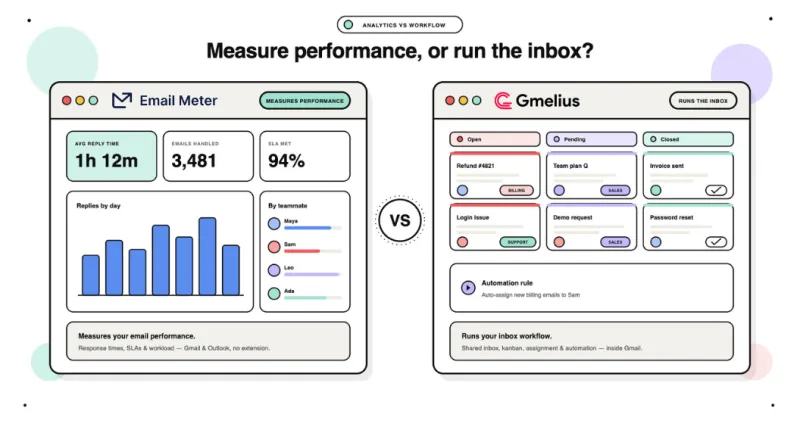
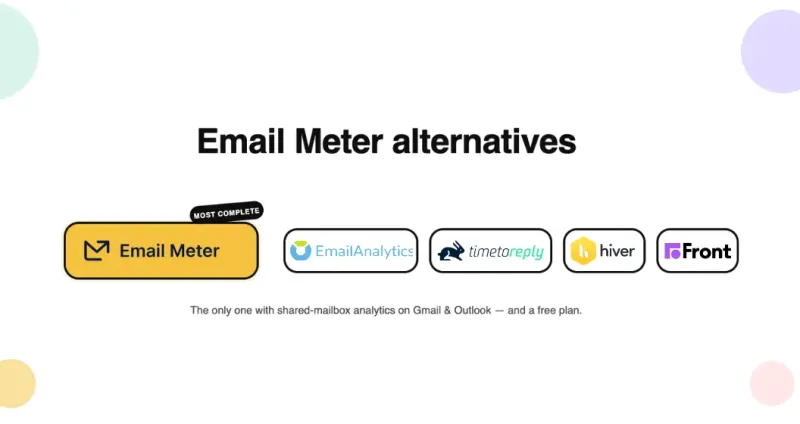
Email Meter is not a shared inbox tool itself, it's an analytics layer that connects to your existing Microsoft 365 or Google Workspace shared mailbox and tells you what's actually happening inside it. Response times, SLA compliance, workload distribution, unreplied emails — everything Microsoft and Google don't show you natively. Free plan available. For a complete comparison of Email Meter's analytics features, see our email analytics tools guide.
Hiver — best for Gmail teams who want workflow features
Hiver adds shared inbox management directly inside Gmail: email assignment, collision detection, internal notes, and status tracking, without requiring your team to leave their inbox. Basic response time analytics included. Gmail only, no Outlook support. From $19/user/month.
Front — best for teams who need advanced workflows
Front combines shared inbox management with CRM integration, automation, and AI-powered routing. Supports Gmail and Outlook. More setup and more cost than native solutions, best for teams that need ticketing-level features alongside email. From $19/user/month.
Help Scout — best for customer support teams
Help Scout is a dedicated customer support platform with shared inbox at its core. Includes a knowledge base, live chat, and customer data alongside email. Best for support teams who want a full helpdesk solution rather than just a shared inbox. From $20/user/month.
Gmelius — best for small Gmail teams on a budget
Similar to Hiver at a lower price point, shared inbox features inside Gmail, basic analytics, kanban view. Gmail only. Some users report interface instability. From $10/user/month.
For a complete comparison of all shared inbox tools including detailed feature breakdowns and use case recommendations, see our best shared inbox tools guide.
Shared mailbox vs alternatives — which should you use?
Shared mailbox vs distribution list
A distribution list and a shared mailbox both use a single email address that multiple people are associated with, but they work very differently.
A distribution list forwards incoming emails to each member's individual inbox. There's no shared conversation thread, no collaborative response, and no visibility into who replied to what. If three people receive the same email via a distribution list, all three might reply or none of them might, each assuming someone else handled it.
A shared mailbox creates a single collaborative inbox where everyone sees the same emails, the same replies, and the same history. One email, one thread, one place.
Use a distribution list when you need to send the same announcement or newsletter to a group of people and don't expect replies that require collaboration.
Use a shared mailbox when you need to manage incoming inquiries that multiple people need to see, respond to, and track together.
For a complete comparison with decision guide, see our shared mailbox vs distribution list guide. Already using a distribution list and want to upgrade? See our step-by-step conversion guide.
Shared mailbox vs user mailbox
A user mailbox belongs to one person. A shared mailbox belongs to the team. The distinction sounds simple, but the implications for how your team manages email are significant.
Use a user mailbox for personal work email, emails meant for you specifically, not the team.
Use a shared mailbox for any team inbox where multiple people need access, visibility, and the ability to respond from a shared address.
For a detailed comparison including when a shared mailbox makes more sense than a dedicated user account, see our shared mailbox vs user mailbox guide.
Shared mailbox vs Microsoft 365 Groups
Microsoft 365 Groups and shared mailboxes both provide a shared email address for a team, but they serve different purposes and come with very different feature sets.
A shared mailbox is focused purely on email. Simple, lightweight, free, and built for teams that need collaborative email management without additional complexity.
A Microsoft 365 Group is a full collaboration suite, email plus SharePoint document library, Teams channel, shared OneNote, and Planner. More powerful, but more complex to manage.
Use a shared mailbox when your team needs email collaboration only, a clean, simple shared inbox without additional tools or complexity.
Use a Microsoft 365 Group when your team needs the full collaboration suite, email, file sharing, Teams, and project management, all connected under one group identity.
Shared mailbox vs Google Groups
In Google Workspace, the equivalent question is: should you use a standard Google Group or a Google Groups Collaborative Inbox?
A standard Google Group works like a distribution list, emails sent to the group address are forwarded to each member's individual inbox. There's no shared conversation thread, no assignment, and no visibility into who replied.
A Google Groups Collaborative Inbox creates a true shared inbox, one address, one place, full team visibility. Members can assign conversations, track status (Open / Assigned / Resolved), and see what's been handled.
What are shared mailbox best practices?
Assign emails, don't leave them floating
When someone picks up an email, assign it so the team knows it's being handled. This prevents duplicate responses and ensures accountability — no more two people drafting the same reply, and no more emails sitting unread because everyone assumed someone else would handle it.
In Microsoft 365, you can use categories or flags to signal ownership. In third-party tools like Hiver or Front, formal assignment features handle this automatically.
Use folders or labels to organize by status
A shared mailbox without structure quickly becomes chaotic. Organize emails by status so the team always knows what needs attention:
- New — just arrived, not yet picked up
- In Progress — someone is handling it
- Waiting for Customer — reply sent, awaiting response
- Resolved — fully handled, no further action needed
- Escalated — needs senior attention
In Microsoft 365, use folders or categories. In Google Groups Collaborative Inbox, use the built-in status tags.
Set response time expectations
Define SLA targets and communicate them clearly to the team, for example, "acknowledge within 2 hours, resolve within 24 hours." Without a defined target, response times drift naturally upward as volume increases.
Track whether you're meeting your targets ,not just set them. A target without measurement is a wish, not a commitment.
For SLA benchmarks by team type and industry, see our email response time guide.
Set up auto-replies and rules
Auto-replies acknowledge receipt immediately — customers know their email arrived and when to expect a response. Email rules route incoming emails automatically by sender, subject, or keyword — so the right person sees the right email without manual sorting.
In Microsoft 365, set up rules directly in Outlook. In Google Workspace, use Google Groups settings or Gmail filters. For Power Automate workflows and advanced automation, see our shared mailbox rules and automation guide.
Review performance weekly
A 15-minute weekly review using three numbers, average response time, unreplied email count, and SLA compliance rate, is more valuable than monthly dashboard checks. Monthly reviews catch problems that have already become expensive to fix. Weekly reviews catch them before they become client complaints.
Share the data with your team, not just managers. When team members can see their own response time alongside the team average, they self-correct naturally.
Limit access to those who need it
More access doesn't mean better collaboration, it means more noise and less accountability. Keep the access list tight and review it quarterly. When someone changes role or leaves the team, remove their access immediately.
In Microsoft 365, audit shared mailbox permissions regularly via the Microsoft 365 Admin Center. In Google Workspace, review group membership in the Google Admin Console.
For the complete best practices guide with implementation tips for Outlook and Gmail teams, see our shared mailbox best practices guide.
How do you monitor shared mailbox performance?
This is where most teams hit a wall. Microsoft 365 and Google Workspace don't provide team-level analytics for shared mailboxes natively, no response time tracking, no SLA compliance monitoring, no workload distribution data. You can see emails coming in and going out, but you can't answer the questions that actually matter for managing a team:
- How long are customers waiting before getting a reply?
- Which team member is handling the most volume?
- Who is consistently slow — and why?
- What percentage of emails are we answering within our SLA target?
- Which threads have gone unanswered for more than 24 hours?
Email Meter connects to your Microsoft 365 or Google Workspace shared mailbox via API and answers all of these automatically — no manual tracking, no spreadsheets, no browser extension.
What Email Meter tracks on your shared mailbox:
Response time tracking
Average and median response time per team member, broken down by day, week, or custom period. See exactly who's fast, who's slow, and when delays happen.
Workload distribution
How many emails each team member is handling. Spot who is overloaded and who has capacity before it becomes a performance problem.
Unreplied email tracking
Threads that have received no response after 24h+. Never let a customer email fall through the cracks again.
SLA compliance monitoring
Set a response time target (e.g., "90% of emails replied to within 4 hours") and track automatically what percentage of emails your team is meeting it. Weekly compliance reports delivered to managers every Monday.
Automated weekly reports
Every Monday morning, managers receive a summary of the team's performance. No manual reporting, no dashboard login required.
Real-world result: Payday HCM used Email Meter to monitor 5 separate shared mailboxes handling 200+ daily emails. Response times dropped from 5 hours to 2 hours — a 71% improvement — within months of implementing weekly performance reviews. "Once you're able to actually see your stats, it gives you the ability to see if you're doing a good job, and who is really doing the work." — Lisa Reynolds, Operations Manager
For a complete guide on monitoring shared mailbox performance step by step, see our how to monitor a shared mailbox guide.
Should you use a shared inbox? Decision guide
Not every team needs a shared inbox. Here's how to decide in three questions.
Question 1: Do you receive external emails that multiple people need to handle?
- No → You probably don't need a shared inbox. Individual mailboxes with clear ownership work fine.
- Yes → Continue to Question 2.
Question 2: Do you need to send emails from a shared address?
- No → Use a distribution list instead — simpler to set up and free. See our shared mailbox vs distribution list guide.
- Yes → Continue to Question 3.
Question 3: Do you need advanced features like analytics, automation, or ticketing?
- No → A native shared mailbox is perfect — free, built into Microsoft 365 or Google Workspace, and requires no additional tools.
- Yes → Consider a third-party shared inbox tool. See our best shared inbox tools guide.
Once you've decided to use a shared inbox, which platform
Explore our complete shared mailbox guides
Whatever your next step, setting up, comparing options, or monitoring performance, here's where to go next.
How do you add a shared mailbox to Outlook?
Step-by-step setup for Windows, Mac, Outlook on the web, and mobile. Includes how to send from the shared address, add users, and troubleshooting tips for when the shared mailbox isn't showing.
→ How to Add a Shared Mailbox to Outlook
How do you set up a shared mailbox in Gmail and Google Workspace?
As of 2026, Google Workspace has a native shared inbox (still rolling out in phases), and you can also build one using Gmail delegation or Google Groups Collaborative Inbox. Complete setup guide for both options with a comparison of when to use each.
→ Shared Mailbox Gmail & Google Workspace: Complete Setup
Does a shared mailbox need a license in Microsoft 365?
Shared mailboxes up to 50GB are free in Microsoft 365, but there are exceptions. This guide covers exactly when a license is required, what the 50GB limit means in practice, and what happens when you exceed it.
→ Do Shared Mailboxes Need a License?
Shared mailbox vs distribution list, which should you use?
A distribution list forwards emails to individual inboxes. A shared mailbox creates a collaborative inbox. This guide explains the key differences, when to use each, and how to decide which is right for your team.
→ Shared Mailbox vs Distribution List: Complete Comparison
How do you convert a distribution list to a shared mailbox?
Already using a distribution list and want to upgrade to a shared mailbox? Step-by-step guide for migrating in Microsoft 365 including the Exchange Admin Center method and PowerShell commands.
→ How to Convert a Distribution Group to a Shared Mailbox
What are shared mailbox best practices?
Setup, security, permissions management, and performance tips for running a shared mailbox that actually works, for Outlook and Gmail teams. Includes SLA target setting, workload distribution, and weekly review frameworks.
→ Shared Mailbox Best Practices Guide
How do you set up shared mailbox rules and auto-replies?
How to configure auto-replies, email routing rules, and Power Automate workflows for your shared mailbox, in Outlook and Google Workspace. Includes send as, send on behalf, and shared mailbox automation setup.→ Shared Mailbox Rules & Automation Guide
How do you monitor a shared mailbox?
Microsoft 365 and Google Workspace don't track shared mailbox performance natively. This guide covers how to set up automatic monitoring for response times, SLA compliance, and workload distribution without manual reporting.
→ How to Monitor a Shared Mailbox
What are the best shared inbox tools?
If you need more than a native shared mailbox, analytics, automation, ticketing, CRM integration, this guide compares the best third-party shared inbox tools for teams, ranked by use case, platform, and budget.
→ Best Shared Inbox Tools for Teams
Shared mailbox vs user mailbox what's the difference?
When to use a shared mailbox vs a personal user mailbox and how they compare to Microsoft 365 Groups and distribution lists.
→ Shared Mailbox vs User Mailbox
Frequently Asked Questions
What is a shared inbox?
A shared inbox is a collaborative email account that multiple team members can access simultaneously using one email address like support@company.com. It is an umbrella term covering Microsoft Shared Mailbox, Google Groups Collaborative Inbox, and third-party tools like Front, Help Scout, and Hiver.
What is a shared mailbox?
A shared mailbox is a central email address that multiple team members can access simultaneously without sharing a password. Each person logs in with their own credentials and is granted permission to read, send, and manage emails from the shared address. In Microsoft 365, shared mailboxes up to 50GB are free. In Google Workspace, the equivalent is achieved through Gmail delegation or Google Groups Collaborative Inbox.
What is the difference between a shared inbox and a shared mailbox?
"Shared inbox" is a general term for any collaborative email solution. "Shared mailbox" is the specific technical implementation, called "shared mailbox" in Microsoft 365, and achieved via Gmail delegation or Google Groups Collaborative Inbox in Google Workspace. All shared mailboxes are shared inboxes, but not all shared inboxes are shared mailboxes.
Does a shared mailbox need a license in Microsoft 365?
No. In Microsoft 365, shared mailboxes up to 50GB are free and don't require their own license. However, each user who accesses the shared mailbox must have a valid Exchange Online license. For more details, see our full licensing guide.
Does a shared mailbox have a password?
No. Access is controlled through individual user permissions, each person logs in with their own credentials. This is more secure than sharing a single password because access can be revoked instantly, every action is tracked, and standard IT security policies apply automatically.
Can a shared mailbox send email?
Yes. In Microsoft 365, users with "Send As" permission can send emails that appear to come from the shared address only. Users with "Send on Behalf" permission send emails that show both their name and the shared address. In Google Workspace, members of a Collaborative Inbox can reply from the group address by default.
What is the difference between a shared mailbox and a distribution list?
A distribution list forwards emails to individual inboxes, there is no shared conversation thread or collaborative response. A shared mailbox creates a single collaborative inbox where the whole team can see, manage, and respond to emails together. For a full comparison, see our shared mailbox vs distribution list guide.
How do I add a shared inbox in Outlook?
Go to Microsoft 365 Admin Center → Teams & groups → Shared mailboxes → Add a shared mailbox. Enter a display name and email address, add members, and the mailbox will appear automatically in Outlook for all members. For the full step-by-step guide including Mac and mobile setup, see our Outlook setup guide.
Is there a free shared inbox option?
Yes. Microsoft Shared Mailbox is free for Microsoft 365 users up to 50GB. Google Groups Collaborative Inbox is free for Google Workspace users. Email Meter also has a free plan that adds response time tracking and performance analytics on top of your existing shared mailbox no credit card required.
What features should I look for in a shared inbox tool?
For team-level performance: response time tracking, SLA compliance monitoring, workload distribution, unreplied email tracking, and automated manager reports. For workflow management: email assignment, collision detection, internal notes, and status tracking. For a complete comparison, see our best shared inbox tools guide.
Can I access a shared mailbox on mobile?
Yes. Microsoft shared mailboxes work on Outlook Mobile for iOS and Android. Google Workspace shared mailboxes via delegation work on the Gmail app. Most third-party shared inbox tools, Front, Help Scout, Hiver, also have dedicated mobile apps.
How many people can access a shared mailbox?
There is no hard limit in Microsoft 365 or Google Workspace. In practice, shared mailboxes work best for teams of 2–20 people. For larger teams or higher email volumes, a third-party shared inbox tool adds the structure needed to manage at scale, assignment rules, SLA alerts, and performance dashboards.
What happens to a shared mailbox when someone leaves?
The shared mailbox remains active. Your administrator removes that person's access permissions immediately. All emails and history stay in the shared mailbox for the remaining team members to access, nothing is lost.
How do I monitor shared mailbox performance?
Microsoft 365 and Google Workspace don't provide team-level analytics for shared mailboxes natively. Email Meter connects to your shared mailbox and tracks response times, SLA compliance, workload distribution, and unreplied emails automatically. Free plan available at emailmeter.com/free.
Why do teams use shared mailboxes?
Teams use shared mailboxes to avoid duplicate replies, prevent emails from falling through the cracks, share context across teammates, handle customer inquiries faster, and collaborate seamlessly across time zones. A shared mailbox gives everyone visibility into the same inbox, no forwarding, no context lost.